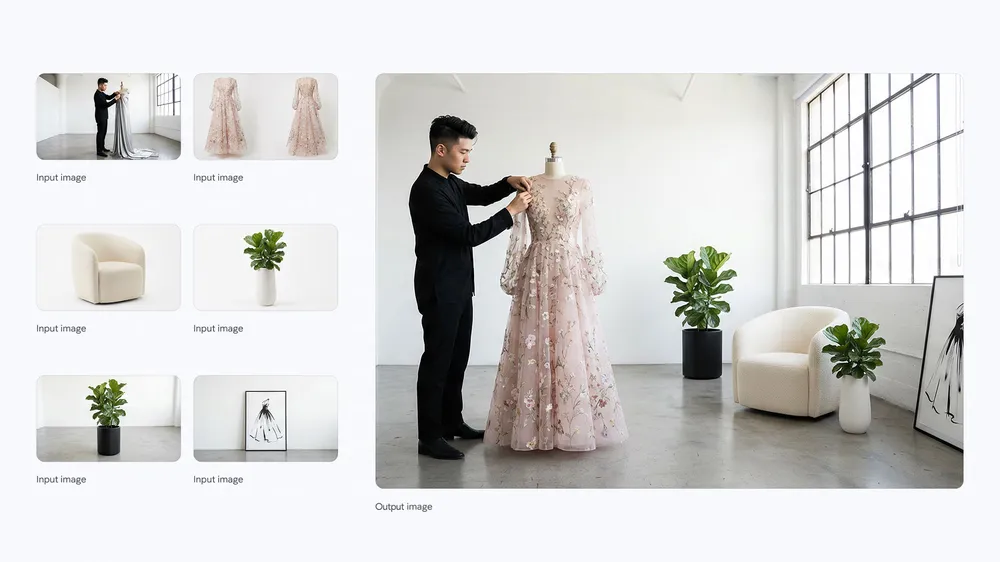
Several references, one finished scene
Feed in subject, outfit, furniture and location references in a single request. In this official Nano Banana example, several inputs come together as one convincing fashion studio shot.


Give the image to image AI generator a photograph, a drawing or a design as your reference, then explain the edit and what has to stay recognisable. Pick a model and an output size to produce a new version from as many as five references.
This page needs at least one reference before it can generate. You need an account, and credits vary with the model you choose and the resolution and quality you set. Credits for failed tasks come back automatically.
Image to image work starts from a reference image. The best prompt covers both halves of the job: what the model is free to reinterpret and what it has to protect. A product can step into a fresh ad concept, an interior can swap its materials, and a photo can guide an illustration with no blank canvas involved.
Feed in subject, outfit, furniture and location references in a single request. In this official Nano Banana example, several inputs come together as one convincing fashion studio shot.
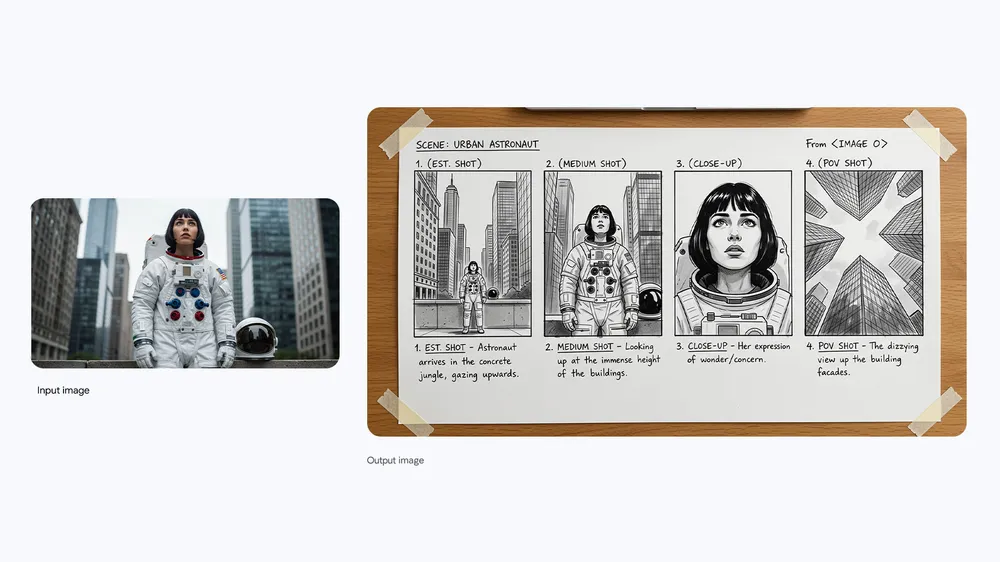
One source photo can fix the character, the outfit and the location while the model invents a run of new camera angles. Say which identity and setting details must not drift.
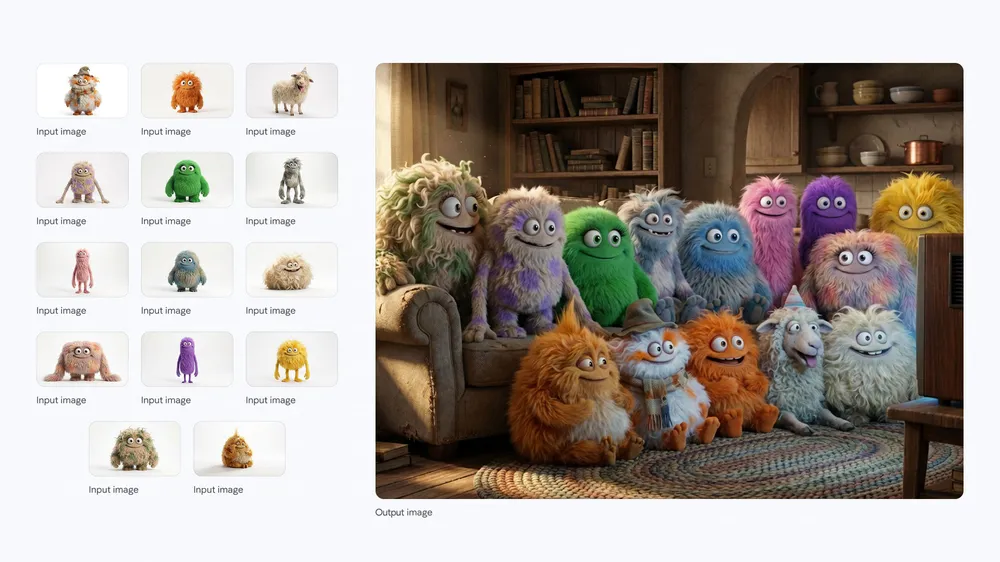
Separate character references can be brought into a single shared setting. Give each input an obvious role and describe where things sit relative to one another, so the image looks planned rather than pasted together.
One reference can lead to very different edits in GPT Image 2, the Nano Banana family and Seedream 5.0 Pro. Some models favour quick variations; others are stronger at following detailed instructions, keeping layouts readable or delivering higher-resolution output. Swap models and everything else on the page stays where it is.
References go straight into the generator without the page turning into a separate editing app. Add a reference, write the prompt, render and line up the results in one place, with settings trimmed to what the chosen model can do.
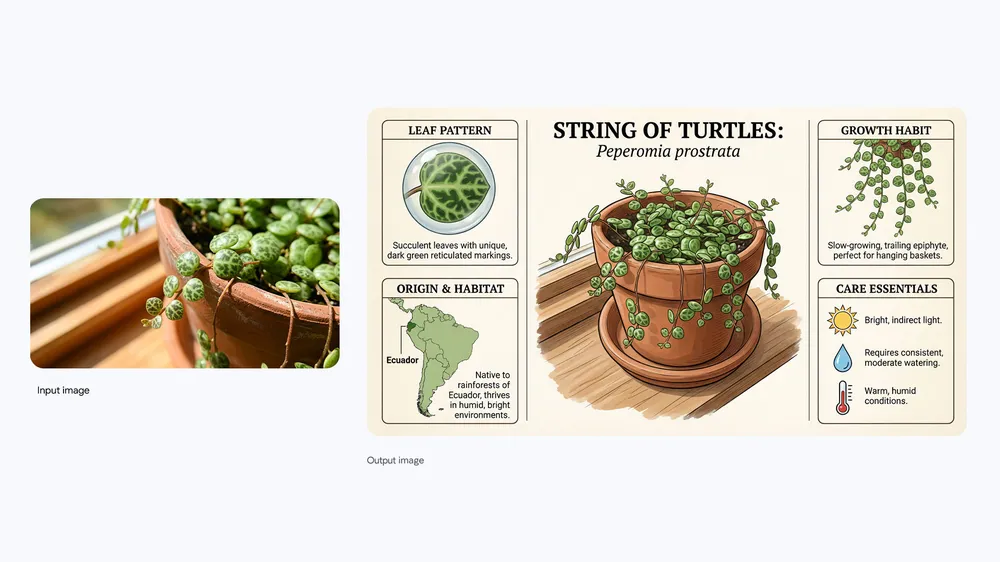
Pair a subject photo with colour, material or layout references whenever a single image cannot carry the whole brief. Each upload is moderated and tracked on its own, so a blocked or broken file never quietly spoils the request.
Write the change as a plain instruction: swap the floor for black terrazzo, leave the windows where they are, move the light to late afternoon. You never need masks, layers or special syntax for a particular provider.
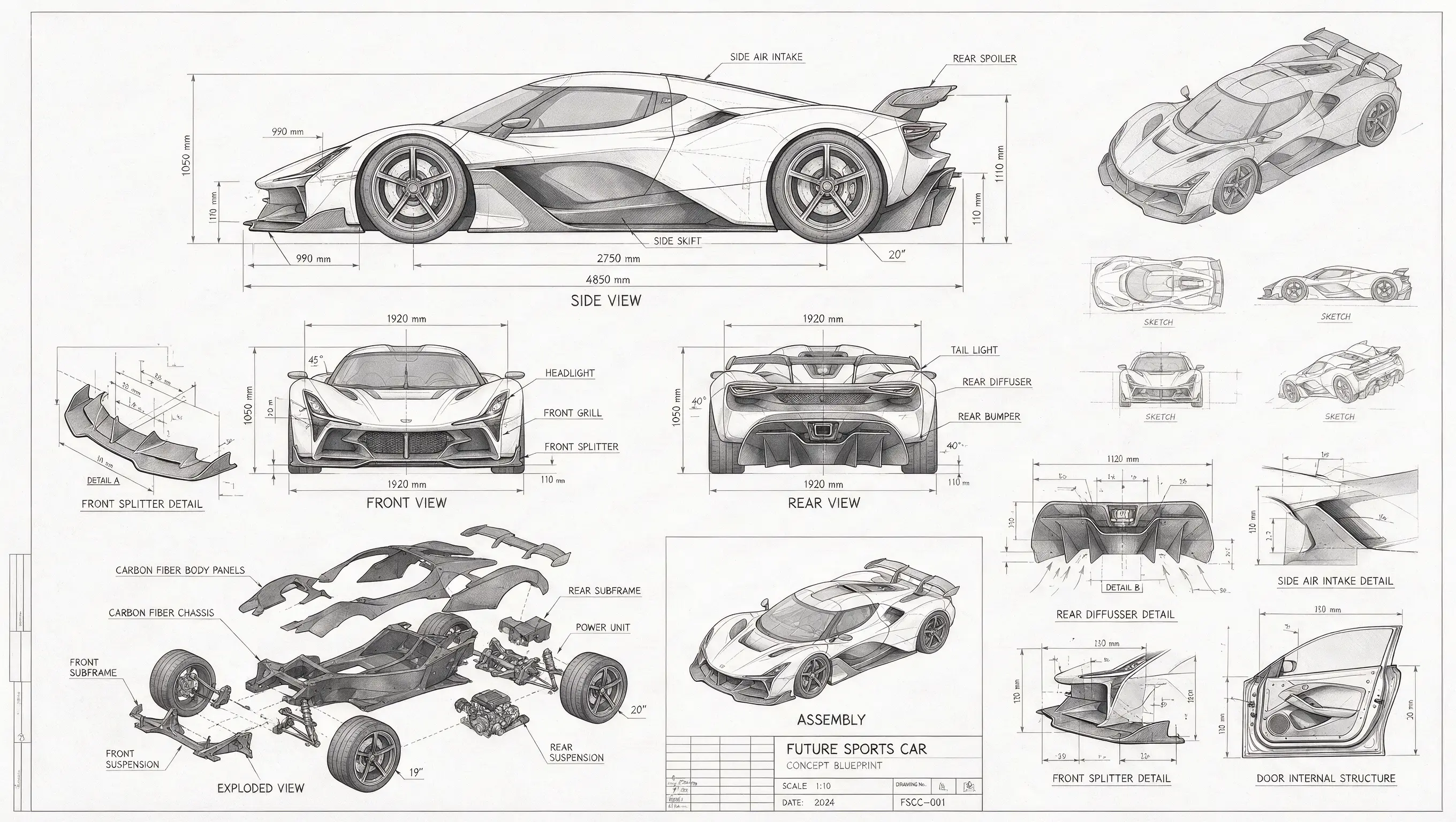
The frame shape, resolution, quality and transparent-background choices follow whichever model you pick. The interface never offers a 4K or background option the current provider cannot deliver.
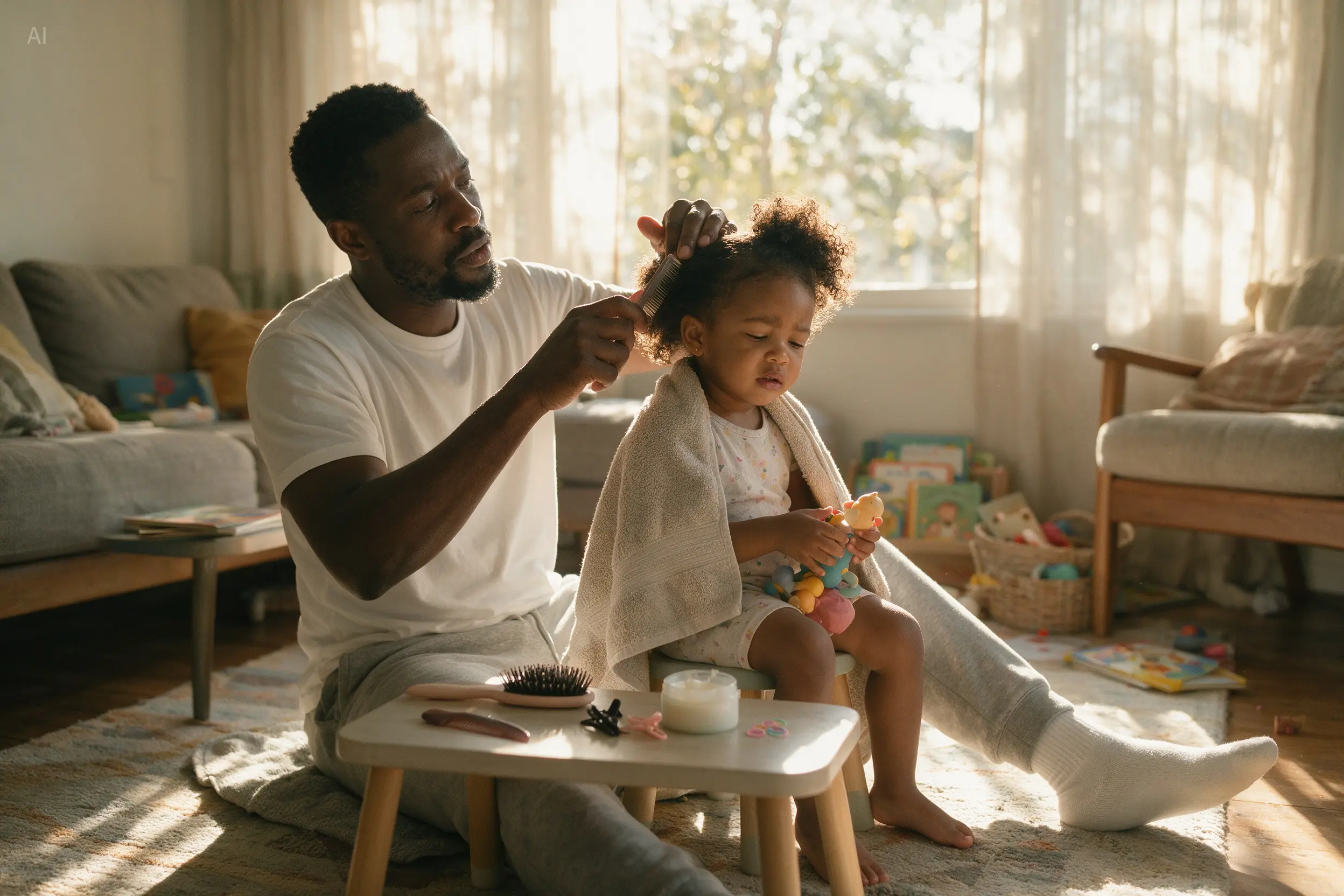
Finished images stay linked to the prompt and settings that made them. Reuse a direction that worked, compare variants and reopen a result without keeping notes outside the generator.
Image to image generation is easiest to control when each reference has a clear job and the prompt separates what changes from what stays.
Pick a crisp JPG, PNG or WebP reference where the subject is easy to see. Only add more if each one brings something different — identity, colours, surface or layout.
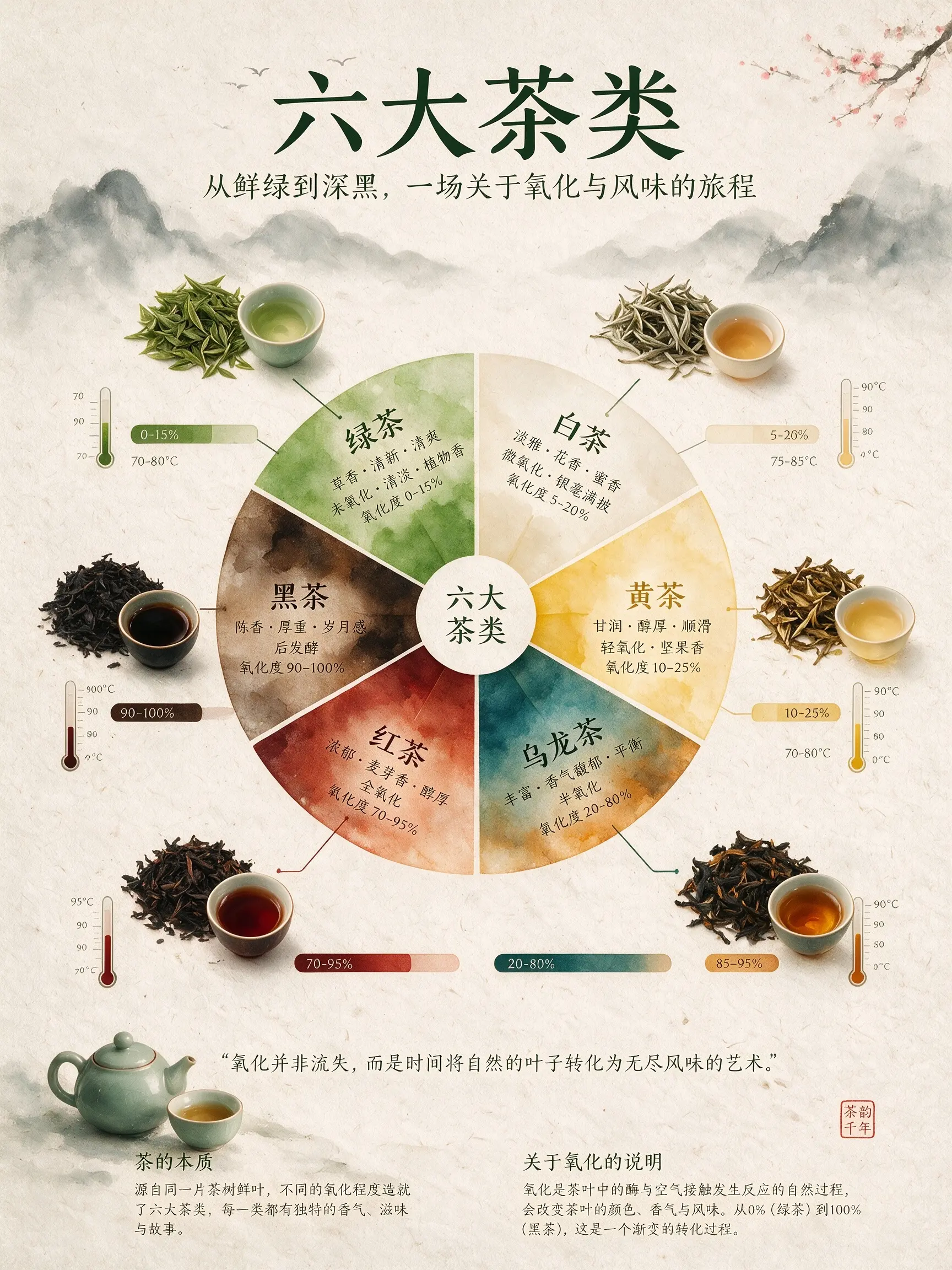
Describe the edit, then list what must hold steady. “Make this room a late-night vinyl bar; leave the viewpoint, the windows and the curved sofa alone” beats a loose request asking for something cinematic.
Check subject accuracy, structure and unwanted changes one at a time. If the result wanders, trim the prompt and stress one protected element. Switch models when the problem is capability, not wording.
Working from a reference makes sense whenever starting from nothing would lose information you need. Each of these tasks starts from an asset you already have and turns it into something new.
Merge outfit, furniture and set references while keeping the intended model and garment intact. Assign each image a role, then adjust the pose, the viewpoint and the light in your prompt.
Turn a single source photo into a planned shot sequence. An image to image AI generator can keep the person and location while trying wide, medium, close and point-of-view framings.
Upload each character separately and place them together in one scene. The references lock in appearance while your instruction sets the grouping, expressions, depth and surroundings.
Let a photo act as the factual reference for a how-to graphic or explainer. Describe the information hierarchy and the illustration style, then fact-check every generated label before it goes out.
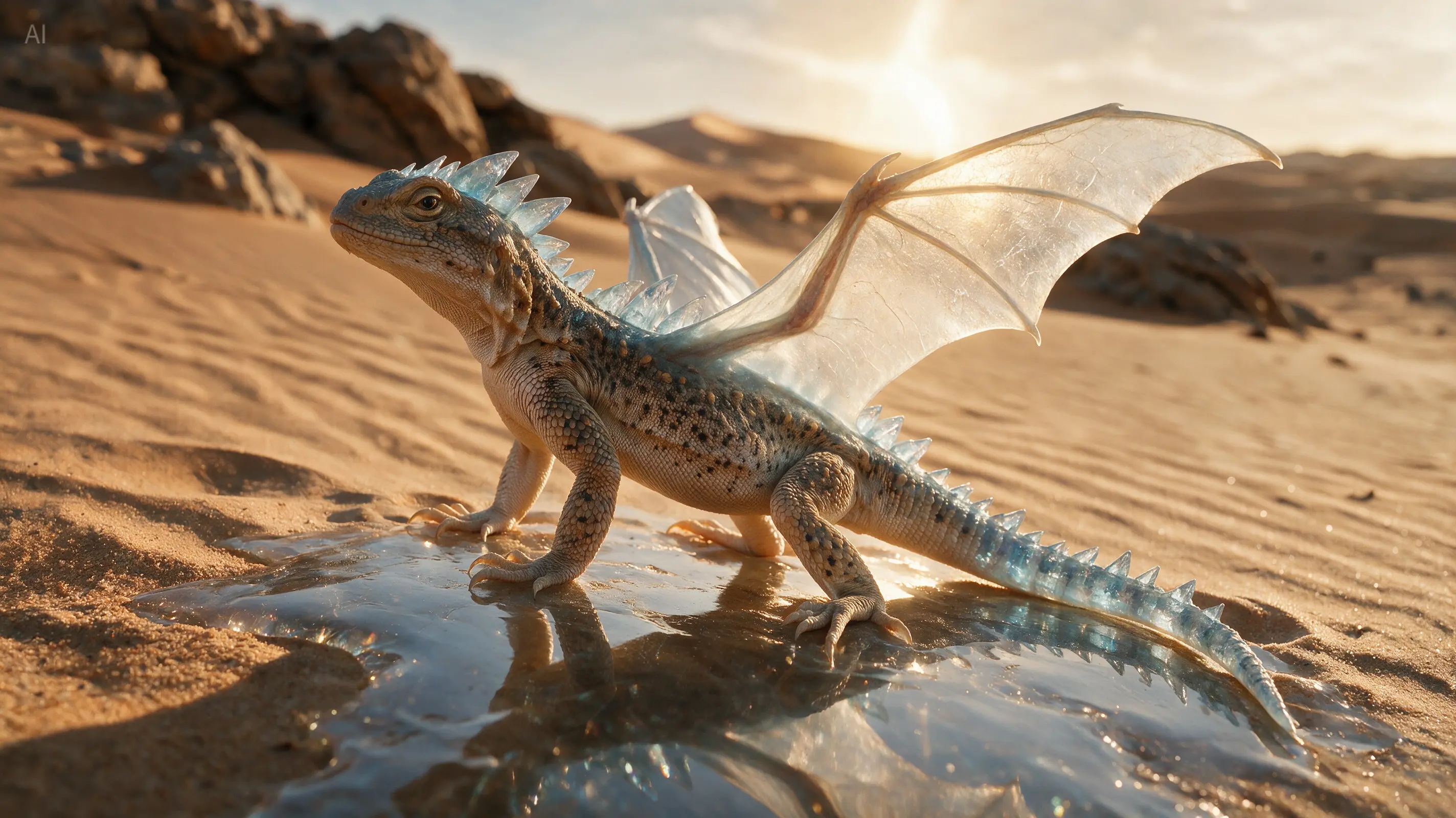
Start from a real animal to fix anatomy, pose and setting, then ask for a measured fantasy twist. Name the features that must stay biologically believable while the material and outline change.
Keep the proportions and the main structural lines while a rough design becomes a polished concept sheet. References help whenever a text-only prompt would dream up a different object.
Browse genuine prompt records and image sets in the MuseGen gallery. Borrow a prompt as your starting point, then swap its reference images for ones you have the right to edit. Each card stays linked to the prompt and model behind it rather than showing anonymous output.
Go with image to image when keeping a reference recognisable is part of the brief, and with text to image when the model should invent the scene with nothing uploaded.
| Decision | Text to Image | Image to Image |
|---|---|---|
| You start with | A prompt, references optional | One or more uploaded images plus an instruction |
| Ideal for | Original scenes, concepts and open exploration | Edits, restyles, variants and continuity |
| What sets the structure | Your words and how the model reads them | The uploaded subject, layout and reference set |
| Prompt focus | Say what should exist | Say what changes and what stays put |
Adding references never hides the price. The generate button lists the credits for the chosen model, resolution and quality before anything runs, and failed generations are refunded automatically.
An image to image AI generator makes a new picture guided by one or more images you upload. Unlike text to image generation, it does not start from words alone. The reference can fix the subject, composition, colours or materials while the prompt tells the model what to change.
Yes. This page is set up for image to image generation, so you need at least one reference before a request can run. To create from words alone, head to the text to image page, where the same upload area is available but marked optional.
Up to five. More is not automatically better — give each file a clear job, such as the subject, the colour palette, the surface finish or the layout. A small set with distinct roles is easier for the model to follow than five almost identical photos.
A clean JPG, PNG or WebP. Better-quality sources tell the model more about shape and texture, but a huge file will not cure blur or heavy compression. Crop out irrelevant borders and make sure you are allowed to upload and alter the image.
Use a clean reference where the subject is big and nothing blocks it, then say which traits must not change. Ask for one meaningful edit at a time. If identity or product shape drifts, cut back the style wording, restate the protected features and try a model that follows references more closely.
Yes. Upload the subject and describe the new setting, lighting and surfaces, while telling the model directly to keep the subject as is. For pixel-perfect production cutouts a dedicated background remover may be more predictable; image to image shines when the surroundings also have to be created.
Yes. Image to image generation suits interior concepts and product-scene variants because your upload already supplies the geometry. Name the fixed elements — camera angle, windows, product outline or packaging shape — then direct the new materials, setting and light.
It depends on the edit. Use a quicker Nano Banana option to explore, then compare GPT Image 2 or Seedream 5.0 Pro when instruction following, layout or fine detail matter more. Resolution and quality options update with the chosen model, and the current cost is shown before you generate.
They go through the signed-in image-generation workflow, pass the existing moderation checks and are attached to your request. See the privacy policy for current retention details, and never upload confidential, unlawful or third-party material you are not allowed to process.
That depends on your plan, the chosen model's terms and the rights attached to every reference. Editing a photo does not cancel the photographer's copyright, a person's right of publicity or a brand's trademark. Only upload assets you may edit, and review the current terms before paid publication.
Upload the reference, describe where it should go next and name what must stay the same. The model, ratio and resolution are all set in the same workspace.
Remix My Image