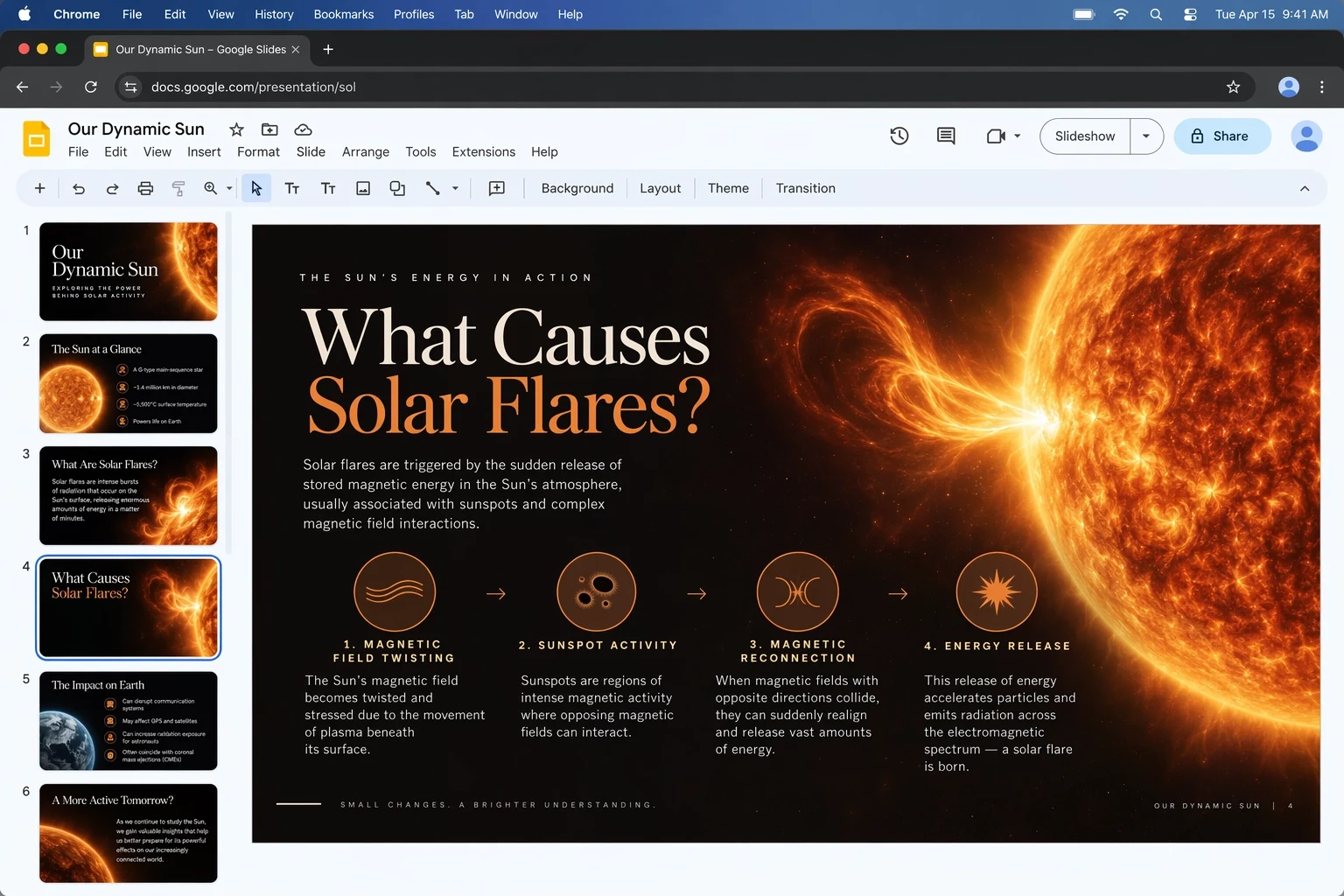
Handles multi-layer briefs
Manage layout, labels, diagrams, colour and slide structure in a single request. A clear hierarchy and quoted text give the model firm targets to hit.
Start with GPT Image 2.5 Flare

GPT Image 2.5 Flare is OpenAI's speed-first GPT Image 2.5 model, and it turns a detailed brief into a finished-looking picture fast. Create from a prompt, edit with references, get as many as four takes per run, and move from a rough idea to campaign, product and social images you can actually use.
Spell out the finished picture: where it will appear, any text it must carry, how it is laid out and how it should look. Attach references only when each has a clear purpose, then set the number of images, the size, the quality, the file type and the background.
GPT Image 2.5 Flare comes preselected. You can still change models to test the brief on Sunburst, on GPT Image 2 or on any other image model.
GPT Image 2.5 Flare suits work where image quality and fast turnaround have to go together: social ideas, product exploration, tools for creators, visual search and quick prototypes.
Within the GPT Image 2.5 family, OpenAI recommends Flare as the go-to model for most apps. According to the official launch, it beats GPT Image 2 on quality while cutting latency in half. So when a team plans to test several layouts, produce versions for multiple channels or build image generation into an interactive product, Flare is the sensible place to start.
Being fast does not mean losing the family's production upgrades. OpenAI points to more natural light, richer surfaces, subjects and references that hold up better, closer adherence to visual instructions, smarter layouts, transparent backgrounds and steadier edits over many rounds throughout GPT Image 2.5. Flare wraps all of that up for frequent, responsive use.
MuseGen offers more than a text box. Pair a prompt with as many as 16 references, ask for between one and four images, pick 1K to 4K, choose from 15 popular aspect ratios or set exact pixel sizes, and export a PNG, JPEG or WebP file. Quality settings span Low through Max, plus Auto, and background and compression settings help you prepare the file for wherever it is going.
This page opens with Flare already selected. Below are the options the built-in MuseGen generator offers today.
Work from words alone, or give uploads a job: identity, product shape, layout, colours or edit limits.
Ask for a single focused picture, or several directions at once without resubmitting the brief.
Pick from 15 aspect ratios, or type a supported width and height that matches where the image will run.
Keep it cheap while exploring, then turn quality up once the composition is right.
Each point pairs how OpenAI describes Flare with an example published for the GPT Image 2.5 family.
Manage layout, labels, diagrams, colour and slide structure in a single request. A clear hierarchy and quoted text give the model firm targets to hit.
Start with GPT Image 2.5 Flare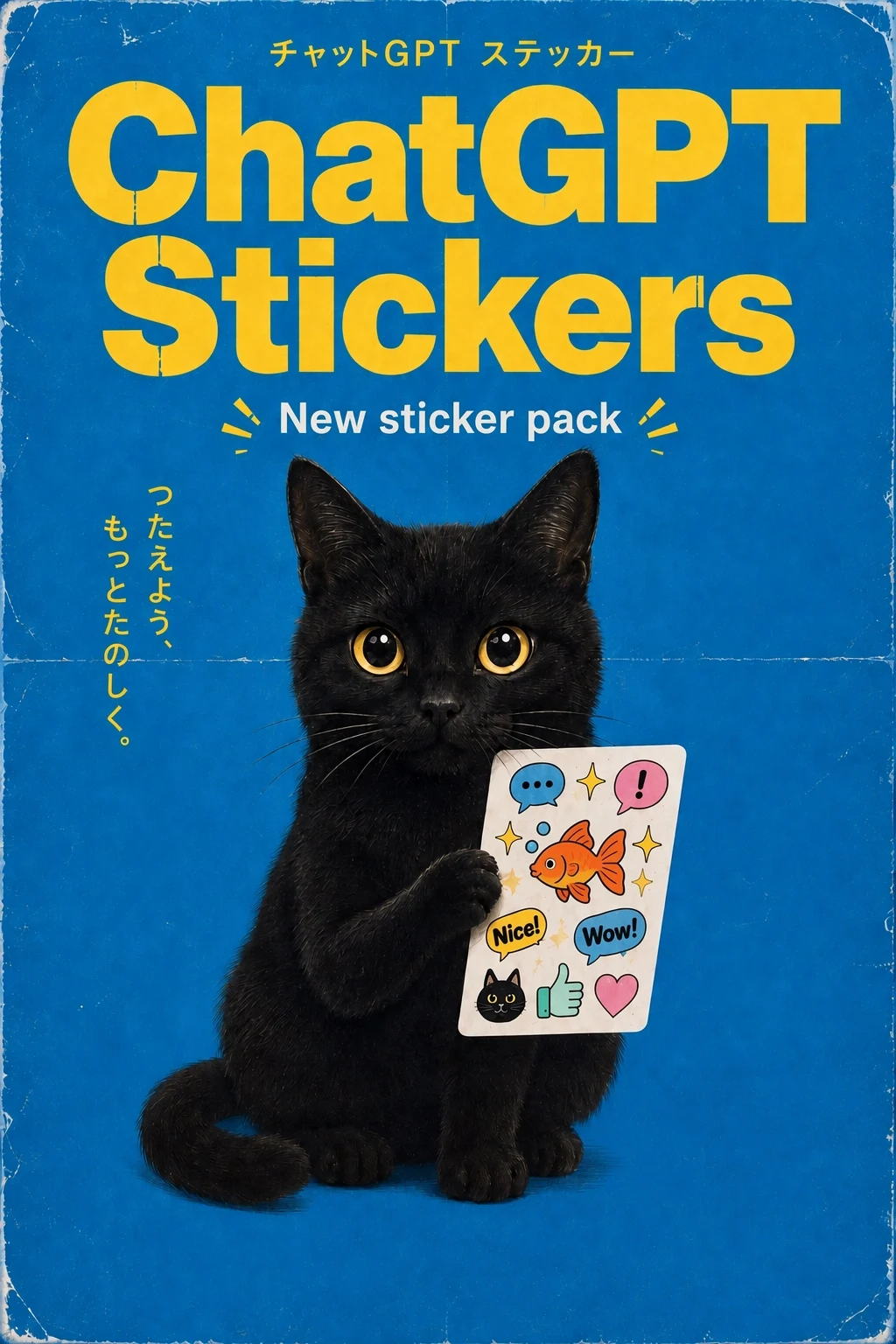
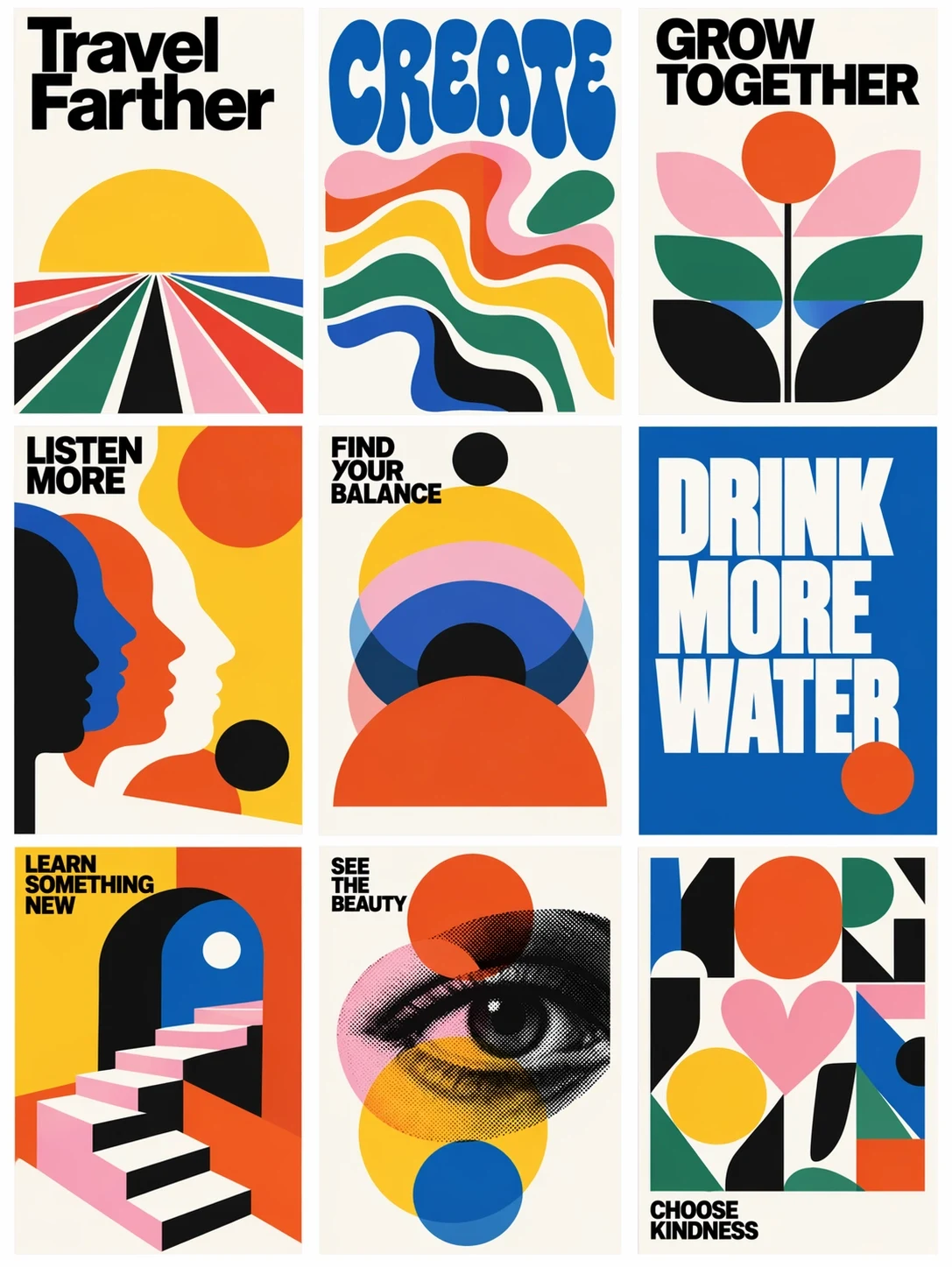
Produce related stickers, icons or social pieces in one shared visual language, with as many as four options from a single brief — a GPT Image 2.5 Flare strength.
Start with GPT Image 2.5 Flare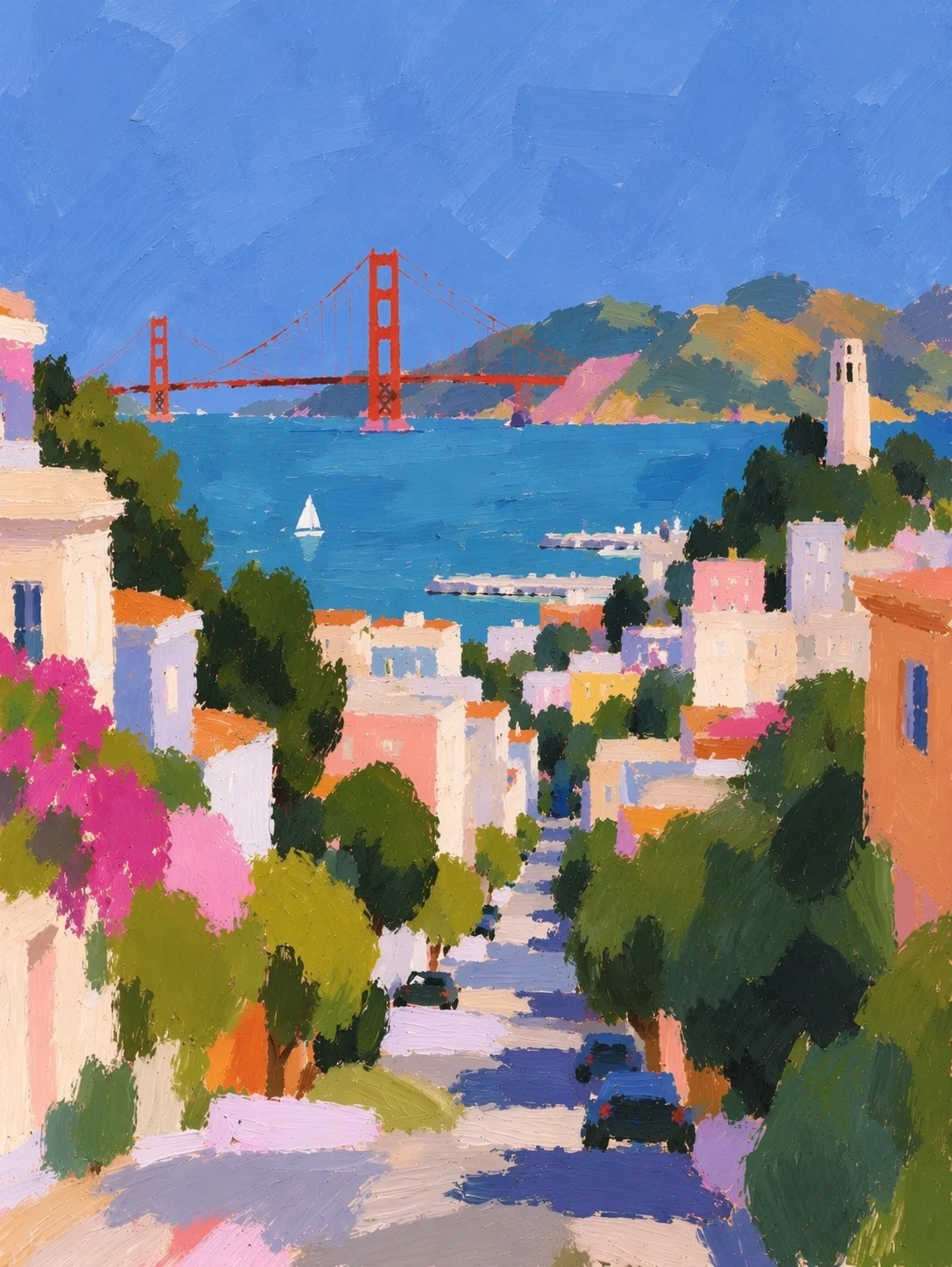
Run through photo, illustration, print and paint looks in quick succession. OpenAI pitches Flare at rapid creative iteration and apps that generate in volume.
Start with GPT Image 2.5 Flare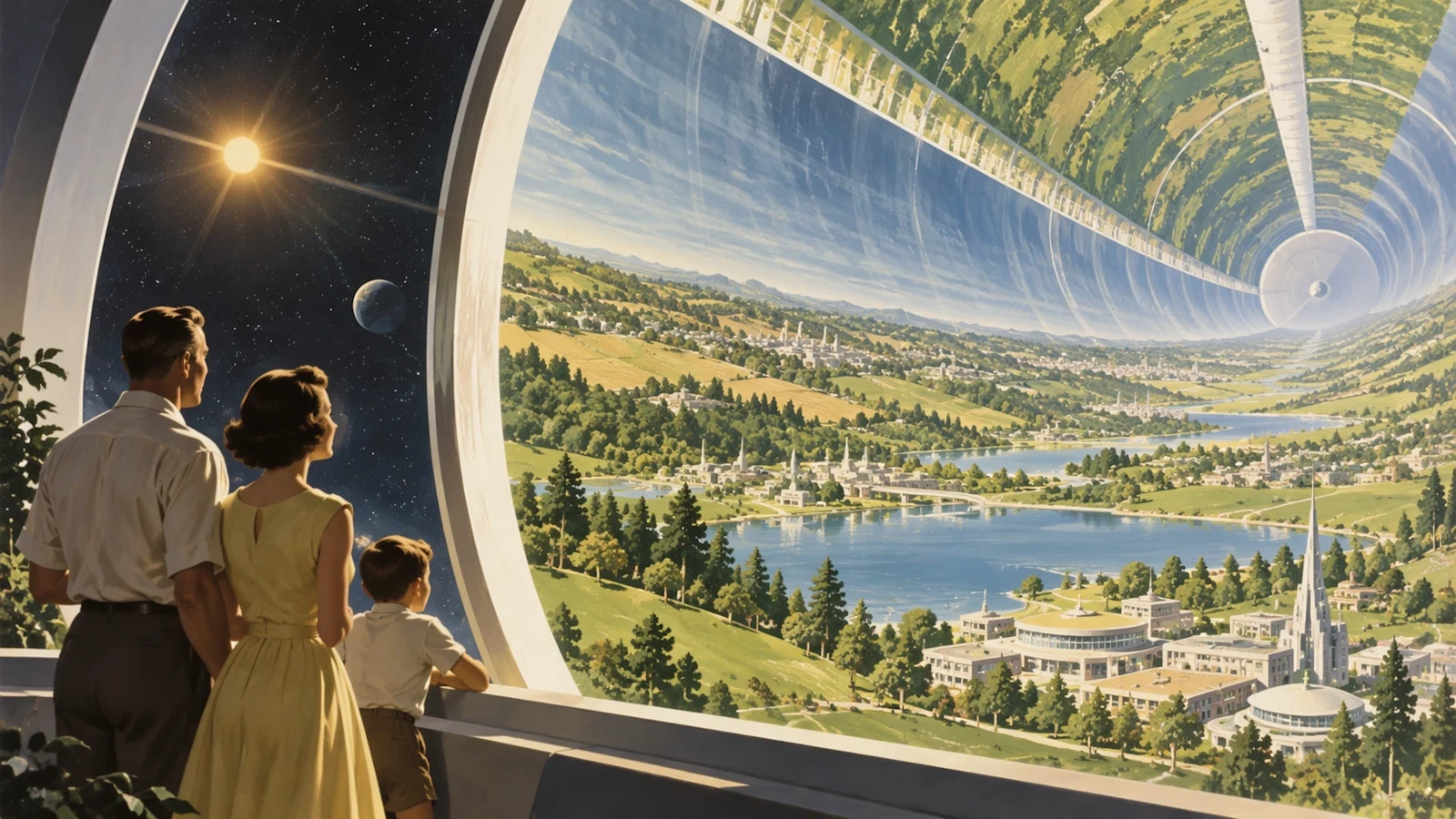
Describe the hero subject, the setting, the camera, the light and the story moment one by one, so a crowded scene stays easy to judge.
Start with GPT Image 2.5 FlareGPT Image 2.5 is better at keeping subjects and references intact. For a tight edit, list what must not change first, then describe the new outfit, background or detail.
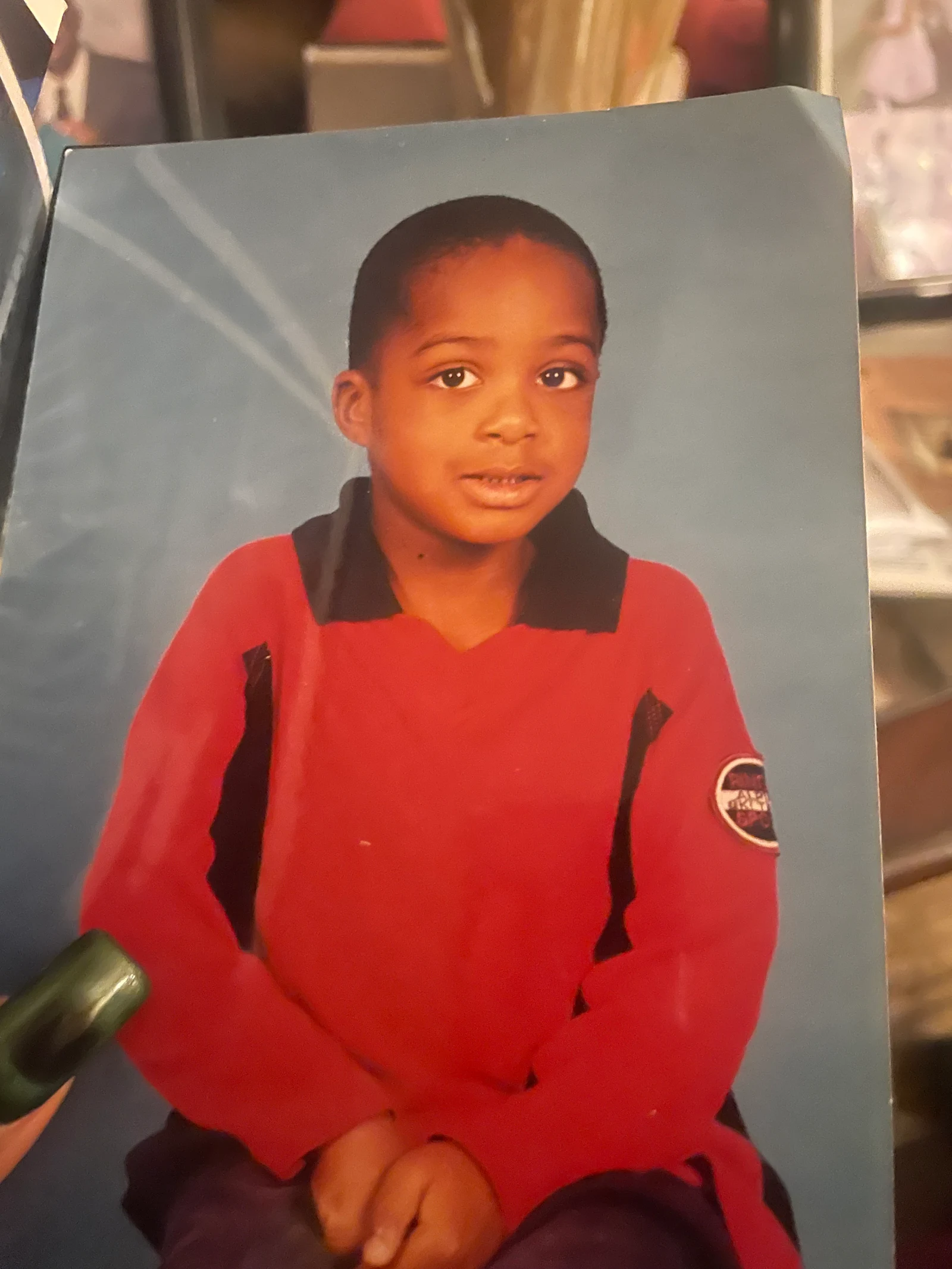
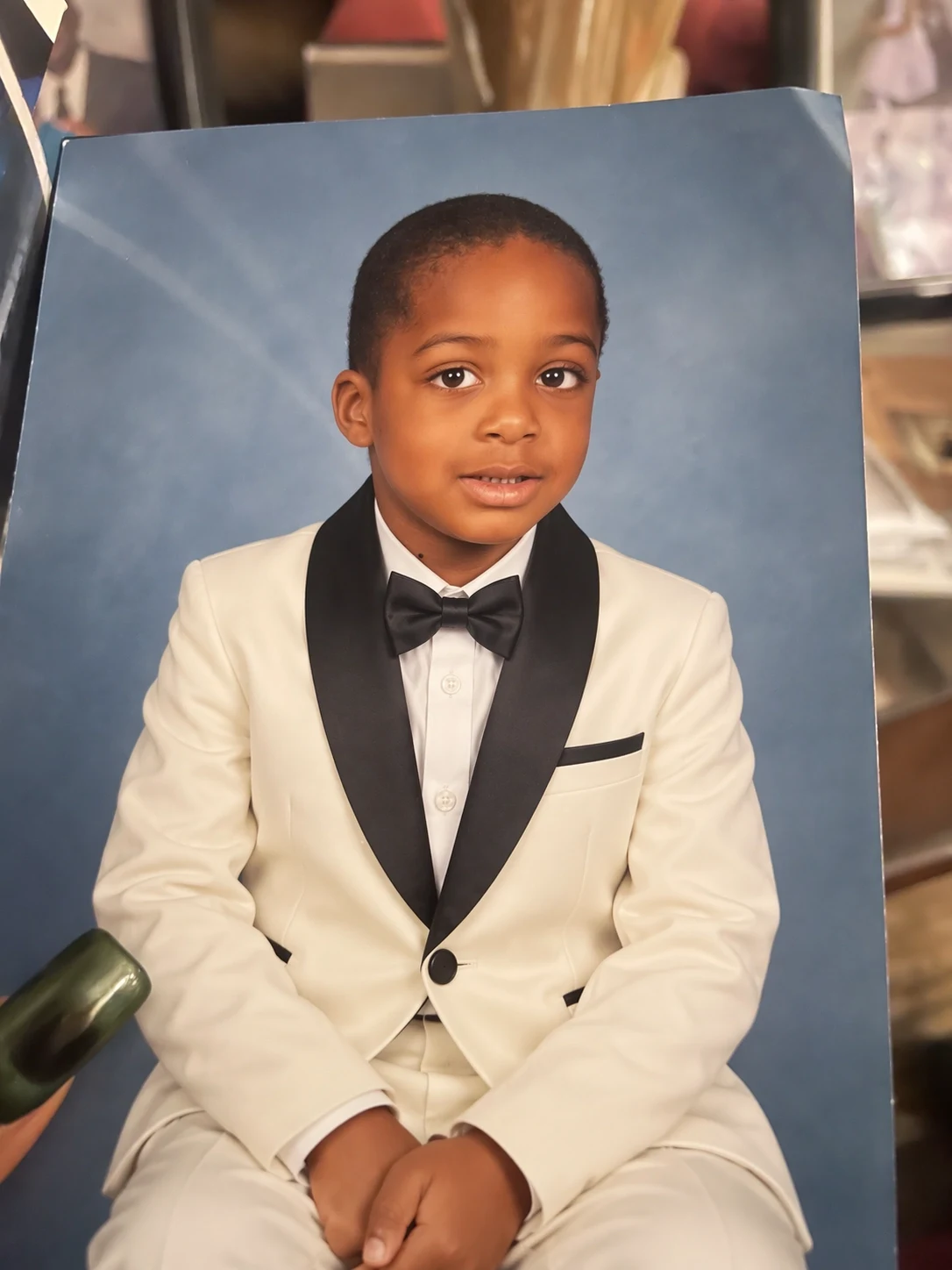
Keep the child's identity, expression, seated pose, framing and studio backdrop recognizable. Replace the red polo outfit with a formal white tuxedo, black lapels and a black bow tie while retaining natural skin texture. No extra people, no text.
Go with Flare whenever quick responses and repeated generation are built into your product or production process.
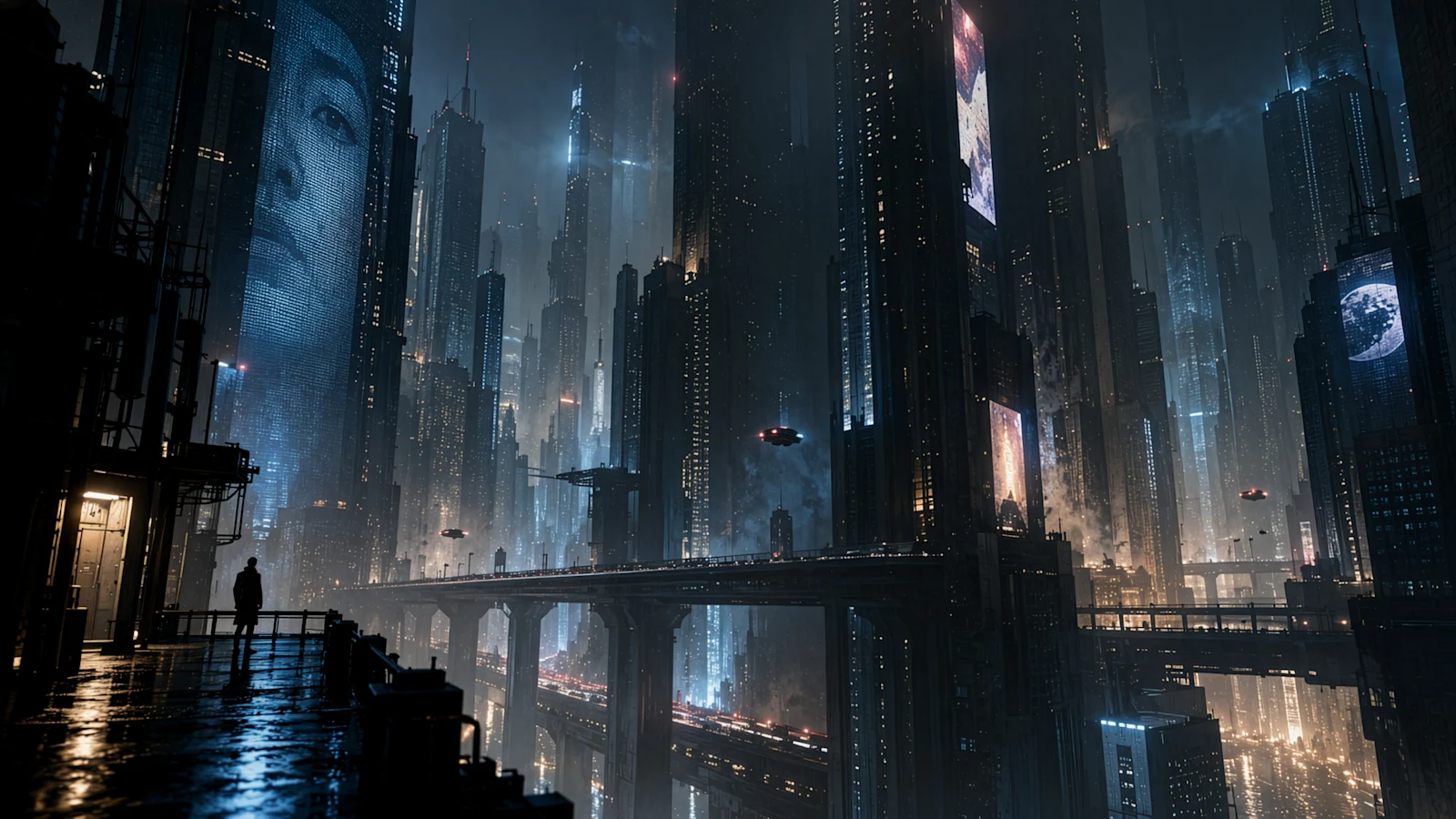
Sketch thumbnails, campaign ideas and channel banners, then ask for several directions to review side by side.
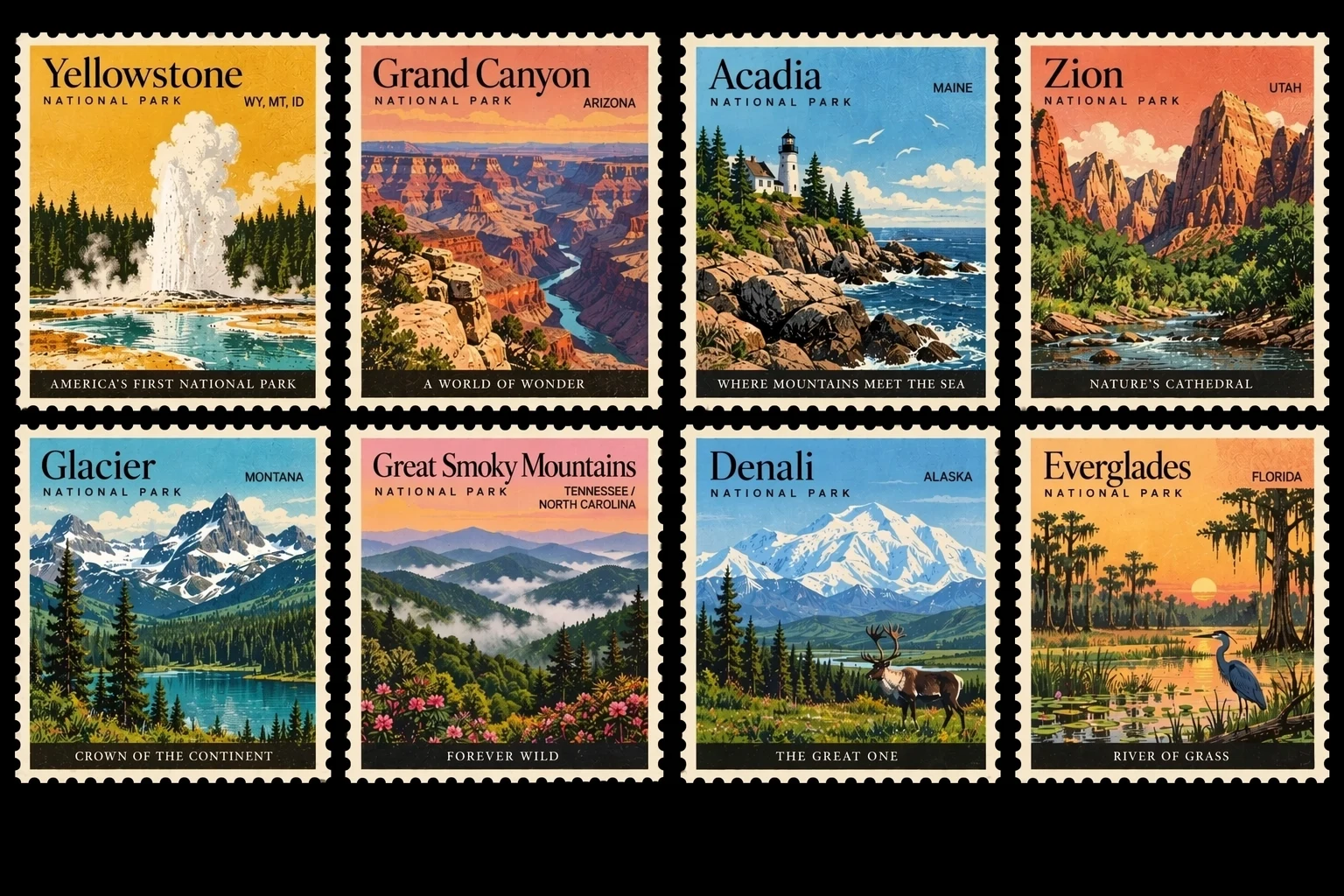
Carry one idea across markets, seasons and ad slots. Enter the true ratio or pixel size from the start so nothing needs cropping.
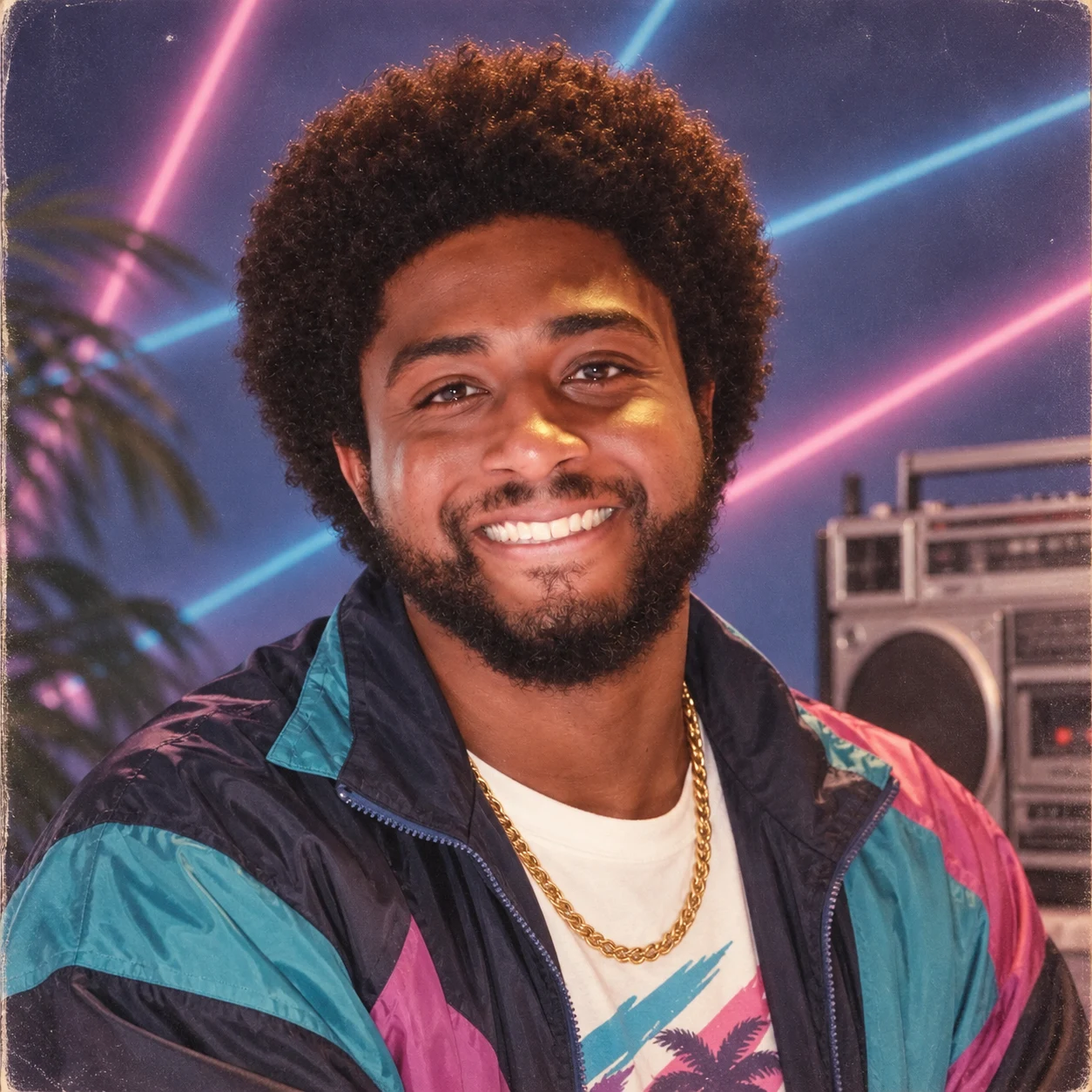
Test characters, wardrobe, product atmosphere and app imagery while the big creative calls are still open.
A good prompt works like a short creative brief. List the visible facts in order of importance so every variant answers the same question.
What you are making + who or what and what they do + layout + exact wording + materials and look + light and camera + output limits + things to avoid
A 4:5 launch poster for social, selling an oat-milk cold brew called "MORNING MILL". Place a frosted glass bottle in the centre on sandy linen, with scattered oats and a soft late-morning shadow. Put the exact headline "SLOW BREWED, FAST GONE" above the bottle and "100% plant-based" beneath it. Clean modern editorial photography, oat, caramel and cream palette, plenty of empty space, label turned to camera, nothing else written and no other logos. Give me four different layouts with identical bottle and words.
Comparing layouts? Lock the product, wording and palette. Comparing styles? Lock the camera and composition instead.
Say which upload sets the person, the product, the layout, the colours or the texture. Numbering uploads and their roles removes guesswork.
Wrap every headline and label in quotes. Read each image carefully and make a targeted edit if a single line needs fixing.
Find the direction on a cheaper pass, and only spend more once the brief and layout are ready.
Note where it will run, the size, the main subject, any required text and the creative question this run should settle.
Give helpful references their roles, choose between one and four images, and enter the true frame shape or an exact pixel size.
Look over the lettering, faces, reflections and product details. Fix the weakest part, then bump up quality for the final render.
GPT Image 2.5 is billed upstream by tokens. MuseGen converts the chosen size, quality and image count into a credit total and shows it before you submit.
| Setting | Options | How to decide |
|---|---|---|
| Number of images | 1, 2, 3 or 4 | One for a focused edit; several when weighing up creative routes. |
| Resolution | 1K, 2K or 4K | Draft at 1K, then go higher when detail or a bigger placement calls for it. |
| Dimensions | 15 ratios or custom pixels | Choose the final frame before anything else so the composition is built for it. |
| Quality | Auto, Low, Medium, High, XHigh, Max | The upper levels burn more tokens and credits — keep them for the images you actually keep. |
| File type | PNG, JPEG or WebP | PNG when you need transparency, JPEG when you need it to open anywhere, WebP when file size matters on the web. |
| Background and compression | Auto, solid or transparent | JPEG and WebP offer compression; transparency needs a format that supports it. |
Both GPT Image 2.5 versions use the same MuseGen settings and provider price table. What differs is the behaviour OpenAI built each one to favour.
| Question | GPT Image 2.5 Flare | GPT Image 2.5 Sunburst |
|---|---|---|
| Main aim | Quicker day-to-day creation, iteration and snappy in-product experiences. | Added precision, tighter control over edits and polished premium results. |
| Usual jobs | Social graphics, creator apps, exploring products, image search and variants in bulk. | Final campaign art, tricky reference-led work and edits where fine detail matters most. |
| How you iterate | Try lots of directions fast, then refine the best one. | Spend more time on a smaller set of tightly controlled results. |
| Pricing | The same size, quality and image-count pricing is shown before you generate. | The same provider token table applies; switching models alone does not change the estimate. |
Quick generation lets teams test more ideas, yet each result still needs a person to review it before it is published or used commercially.
It is the speed-first member of OpenAI's GPT Image 2.5 family, aimed at creator tools, social and product experiences, visual search, prototyping and generating images at volume.
Flare favours speed and everyday iteration. Sunburst trades longer renders for extra precision and tighter edits. Both use the same MuseGen settings and provider pricing.
Yes. Upload references, say what has to stay the same and describe the change you want. A focused edit instruction is usually a clearer target than rewriting the whole scene.
MuseGen takes as many as 16 references for GPT Image 2.5. Give each upload a role — identity, product shape, layout, colours or style.
Yes — between one and four per run. The credit total updates with image count, size and quality before you submit.
MuseGen offers 1K, 2K and 4K, 15 preset aspect ratios and supported custom pixel sizes. Pick the final frame before you generate.
Save as PNG, JPEG or WebP with an automatic, solid or transparent background where supported. JPEG and WebP also have a compression setting.
There is no flat price. MuseGen works out credits from the provider's token use based on size, quality and image count, and shows the figure before you generate.
Explore on Low or Medium, then turn quality up for the image you keep. Higher levels consume more output tokens and credits; Auto leaves the choice to the provider.
Flare is the newer model, and OpenAI reports better quality than GPT Image 2 with half the latency. GPT Image 2 is still available for existing workflows and side-by-side tests.
Claims about the model's positioning and abilities come from OpenAI's official launch and API pages. Settings and billing describe the current MuseGen integration and APIMart's documentation. Images on this page are published GPT Image 2.5 family examples, not Flare-only benchmarks.
Begin at the real delivery size on an economical quality setting, compare up to four directions, then refine and raise quality once the winning layout is obvious.
Start with GPT Image 2.5 Flare