Keeps the subject recognisable
Keep the face, the expression, the pose, the outfit or the shape of the product steady while the surroundings change. Put the protected details at the top of the prompt.
Start with GPT Image 2.5 Sunburst

Reach for GPT Image 2.5 Sunburst when the reference is demanding, the finish must be immaculate and one stray detail would ruin the asset. OpenAI built this variant for precision: closer control, a steadier hold on the subject and premium results worth a slightly longer render.
Write a brief that keeps two lists apart: the details that stay exactly as they are and the details you want changed. Tell the model what each reference is for, choose the output size and format, and raise quality when the image will be scrutinised or needs a premium finish.
GPT Image 2.5 Sunburst is chosen for you. The switcher stays open, so you can run the identical brief on Flare, on GPT Image 2 or on any other model for comparison.
GPT Image 2.5 Sunburst is for jobs where staying true to references, editing accurately and finishing the chosen image beautifully count for more than the fastest turnaround.
In OpenAI's words, Sunburst is the GPT Image 2.5 choice for extra precision and firmer editing control. It is recommended for premium campaign work and high-end product shots — jobs where a slight shift in a face, a box, a texture, an object's position or one line of copy decides whether the image can be used. Aiming for a more exact result is also why it takes longer to finish than Flare.
Across the GPT Image 2.5 family, OpenAI has improved how well subjects and references survive, how closely complex visual instructions are followed, and how lighting, texture, layout and multi-round edits hold up. Sunburst workflows depend on exactly those gains: keeping someone recognisable in a new setting, giving each reference its own role while the hero product stays in focus, or adjusting one element while everything else stays put.
MuseGen hands Sunburst the full toolkit: up to 16 references, one to four images, 1K, 2K or 4K, 15 preset ratios or exact supported pixels, and PNG, JPEG or WebP downloads. Quality spans Low to Max plus Auto, and backgrounds can be automatic, solid or see-through where the format allows.
This page loads Sunburst for you. The built-in generator offers every GPT Image 2.5 setting, while the model itself leans toward accuracy.
Dedicate a separate reference to the face, the product shape, the layout, the materials, the palette and any other details that must not drift.
Go for a single tightly managed image, or a short list of refined options from one brief.
Before generating, pick one of 15 ratios or type in a supported width and height of your own.
Move up a tier when delicate materials, lettering, reference details or the final placement make the extra spend worthwhile.
These four strengths matter most when protecting, arranging and fine-tuning details is worth more than raw speed.
Keep the face, the expression, the pose, the outfit or the shape of the product steady while the surroundings change. Put the protected details at the top of the prompt.
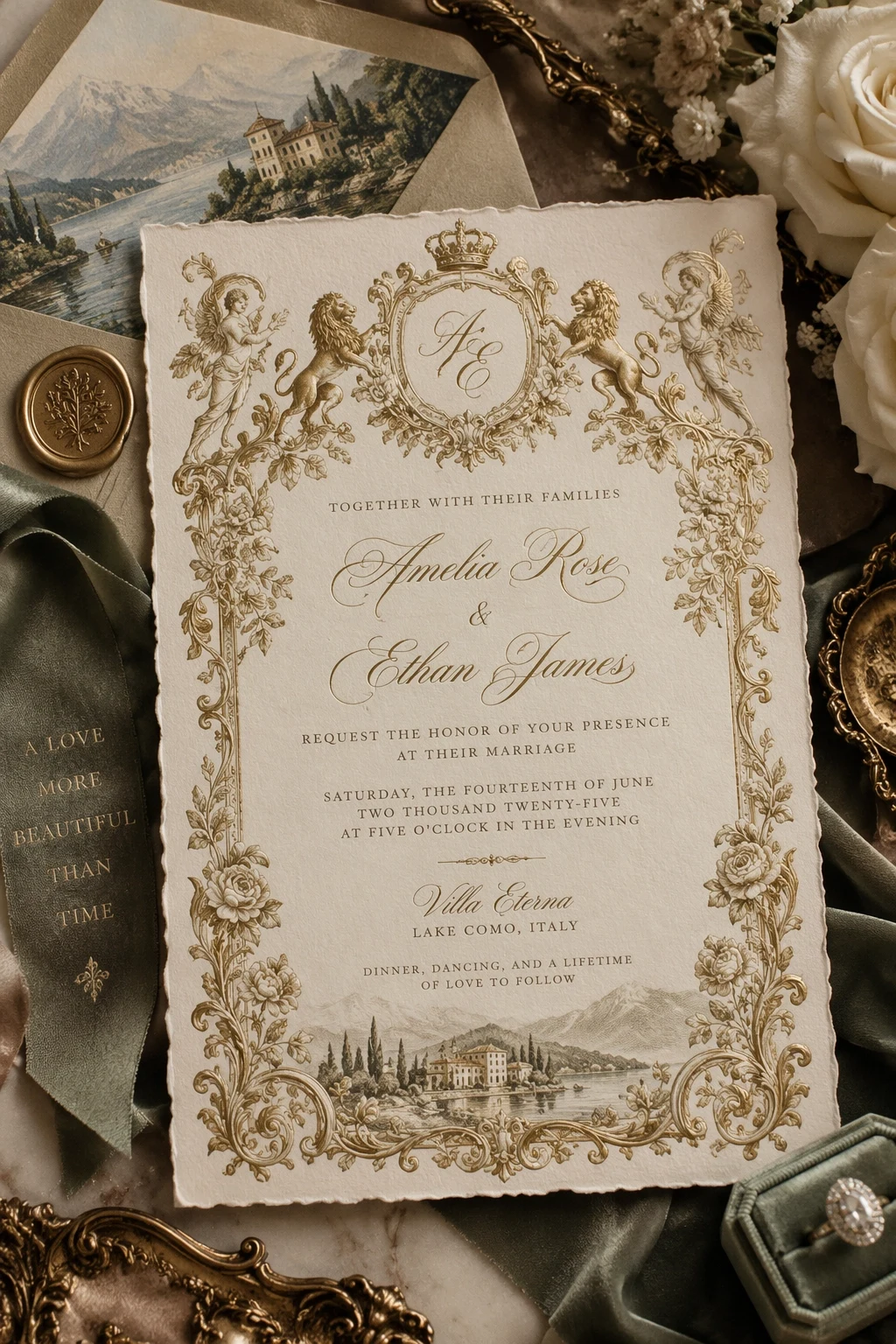
Start with GPT Image 2.5 SunburstSet the exact wording, the hierarchy, the spacing and the printed look of invitations, posters or brand concepts — then check every word yourself.
Start with GPT Image 2.5 Sunburst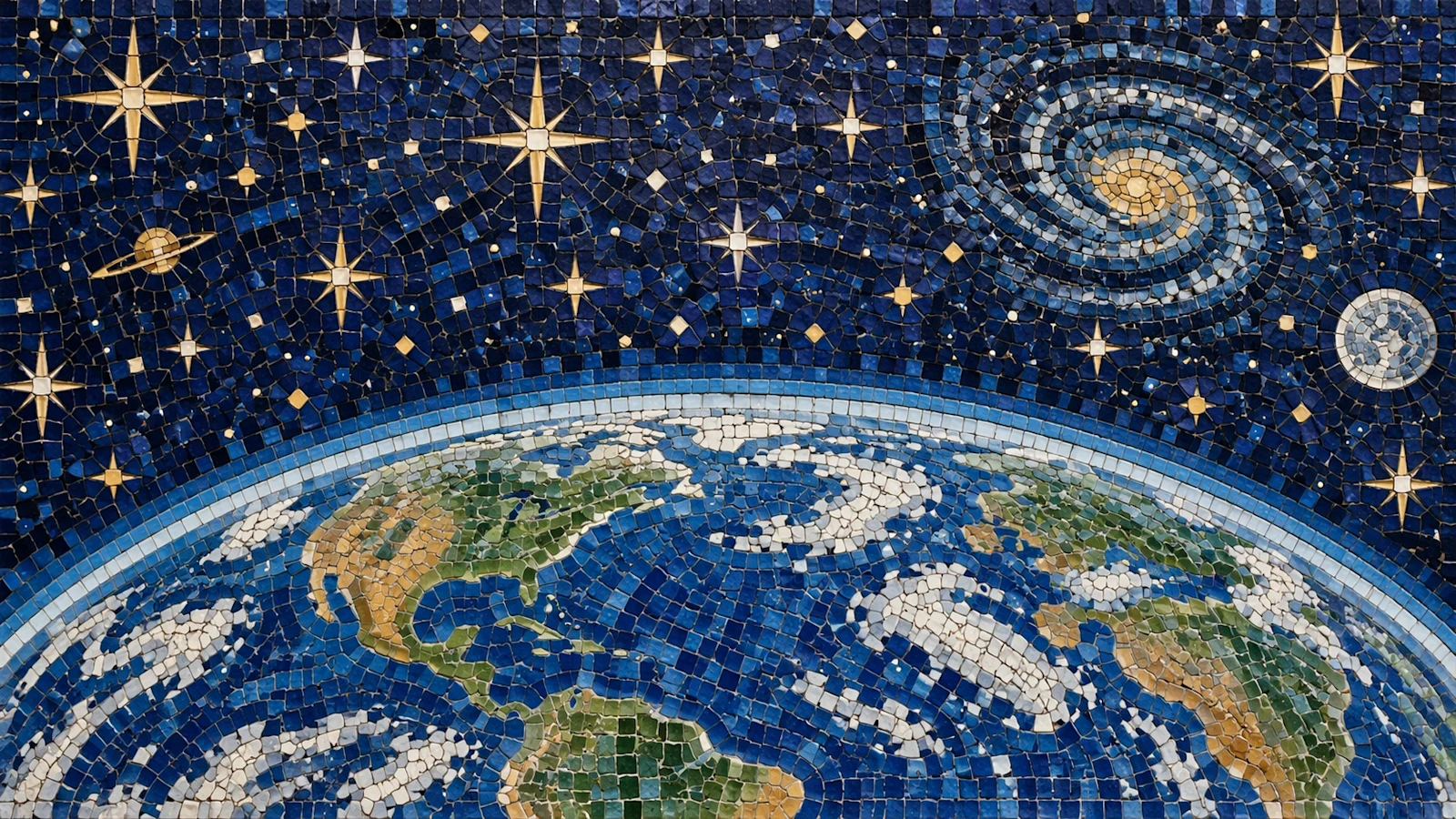
Describe the surface, scale, edges and lighting when packaging, fabric or a product finish has to survive being shown large.
Start with GPT Image 2.5 Sunburst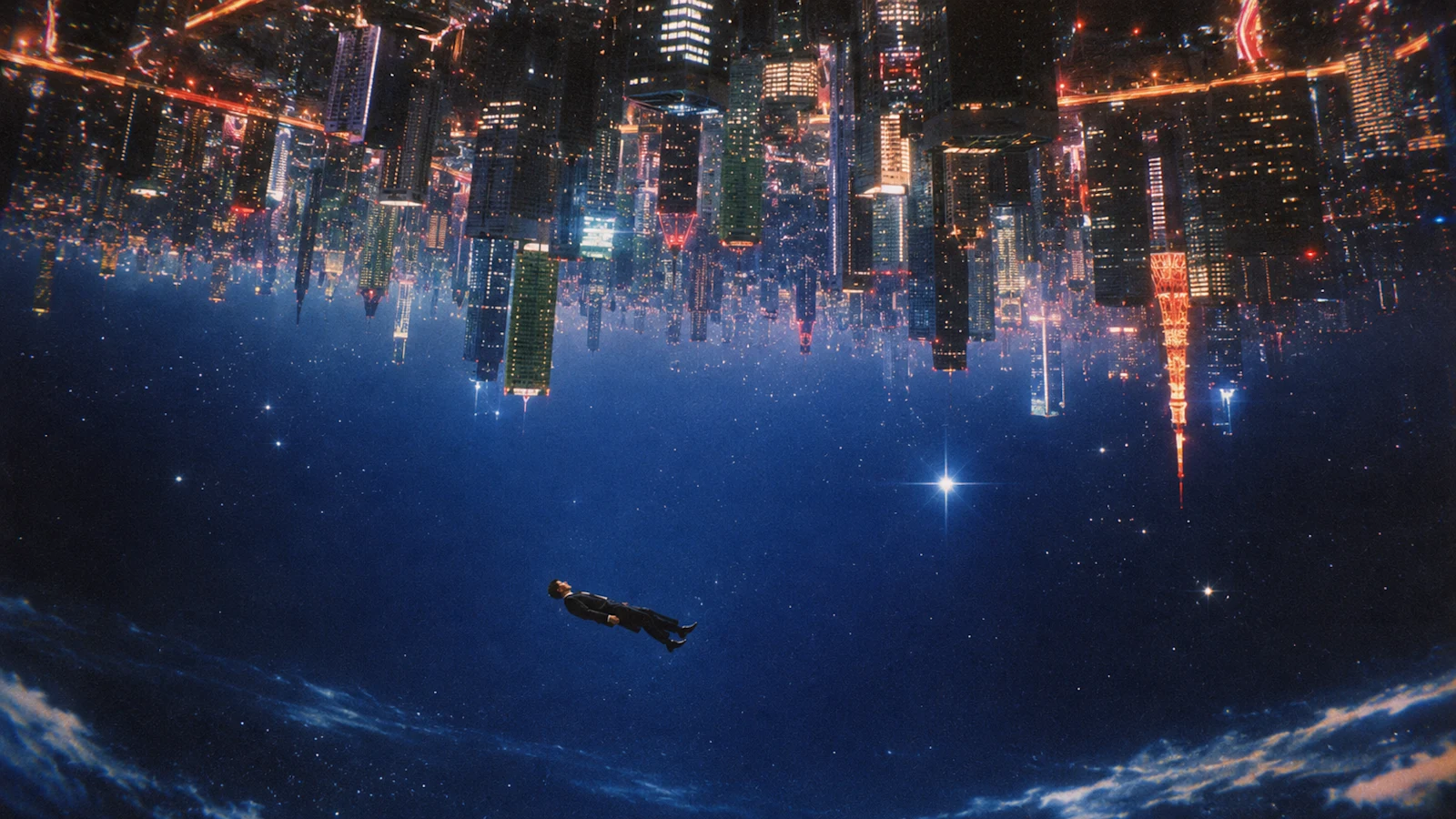
Blend particular artistic traditions, settings and story ideas. Concrete instructions about space and placement make ambitious concepts easier to judge.
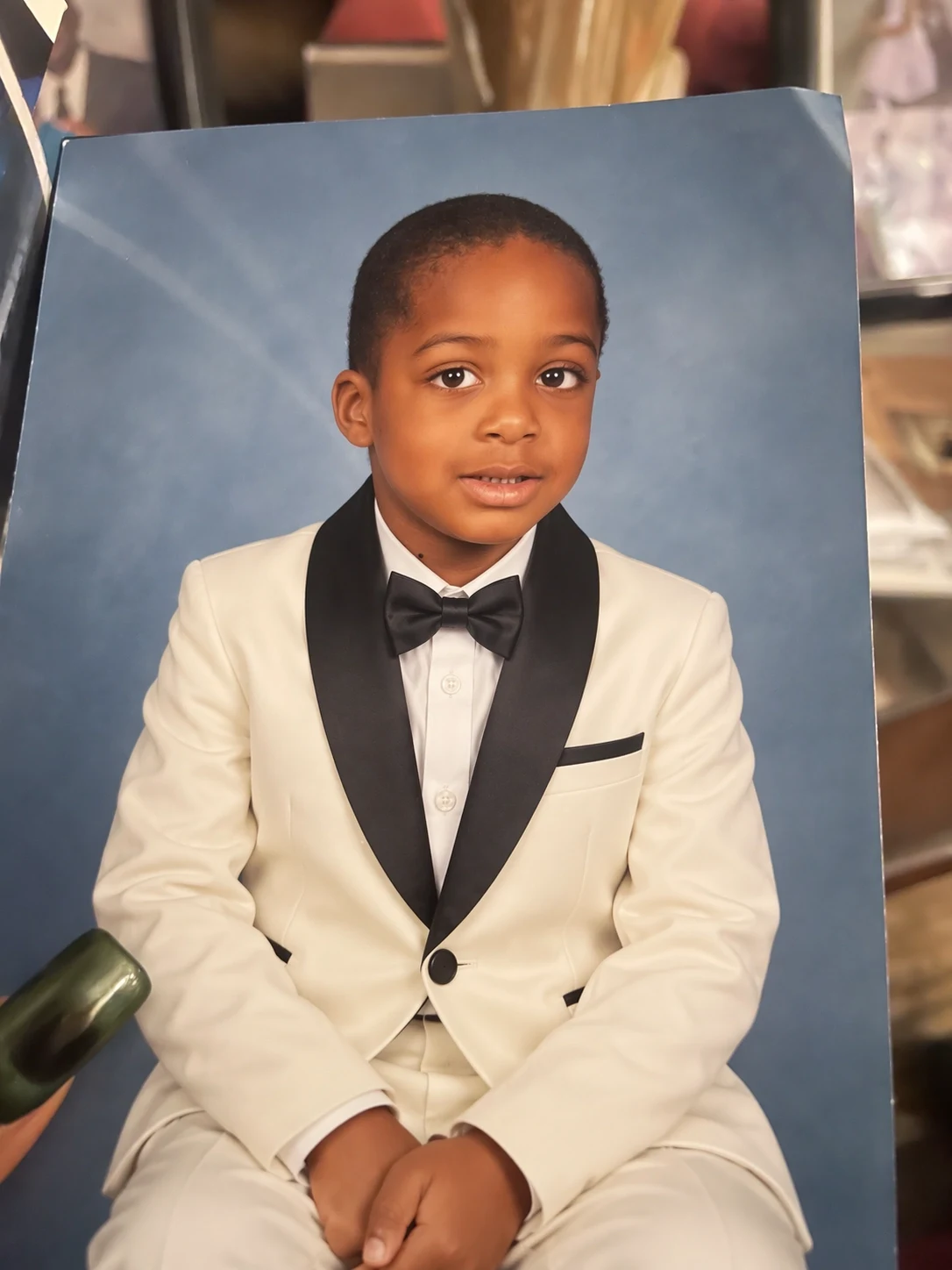
Start with GPT Image 2.5 SunburstA careful Sunburst edit opens with a list of what must survive: the face, the pose, the outline of the product, the camera position or the layout. Once those are fixed, describe only the change you want.

Preserve the child's identity, expression, seated pose, framing, studio backdrop and natural skin texture. Replace the red polo with a formal white tuxedo, black lapels and a black bow tie. No extra people, no text, no change to facial features.
Save Sunburst for the chosen few images where brand detail, clear information and polish are worth more than a pile of drafts.
Build flagship invitations, posters and launch visuals with clearly specified text, layout, materials and finish.
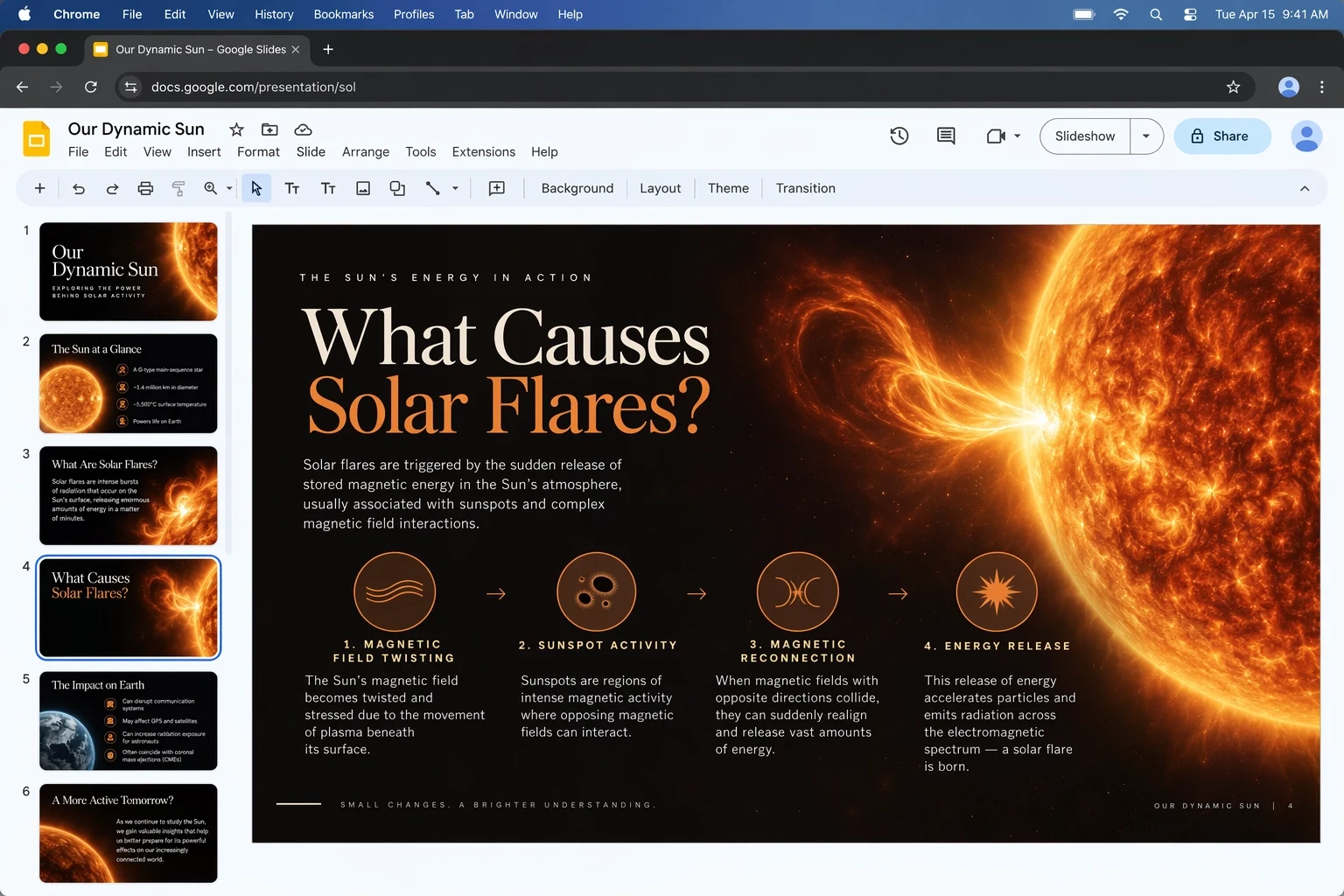
Combine a product or a technical subject with clear labels and a reading order, while references keep the core design details intact.
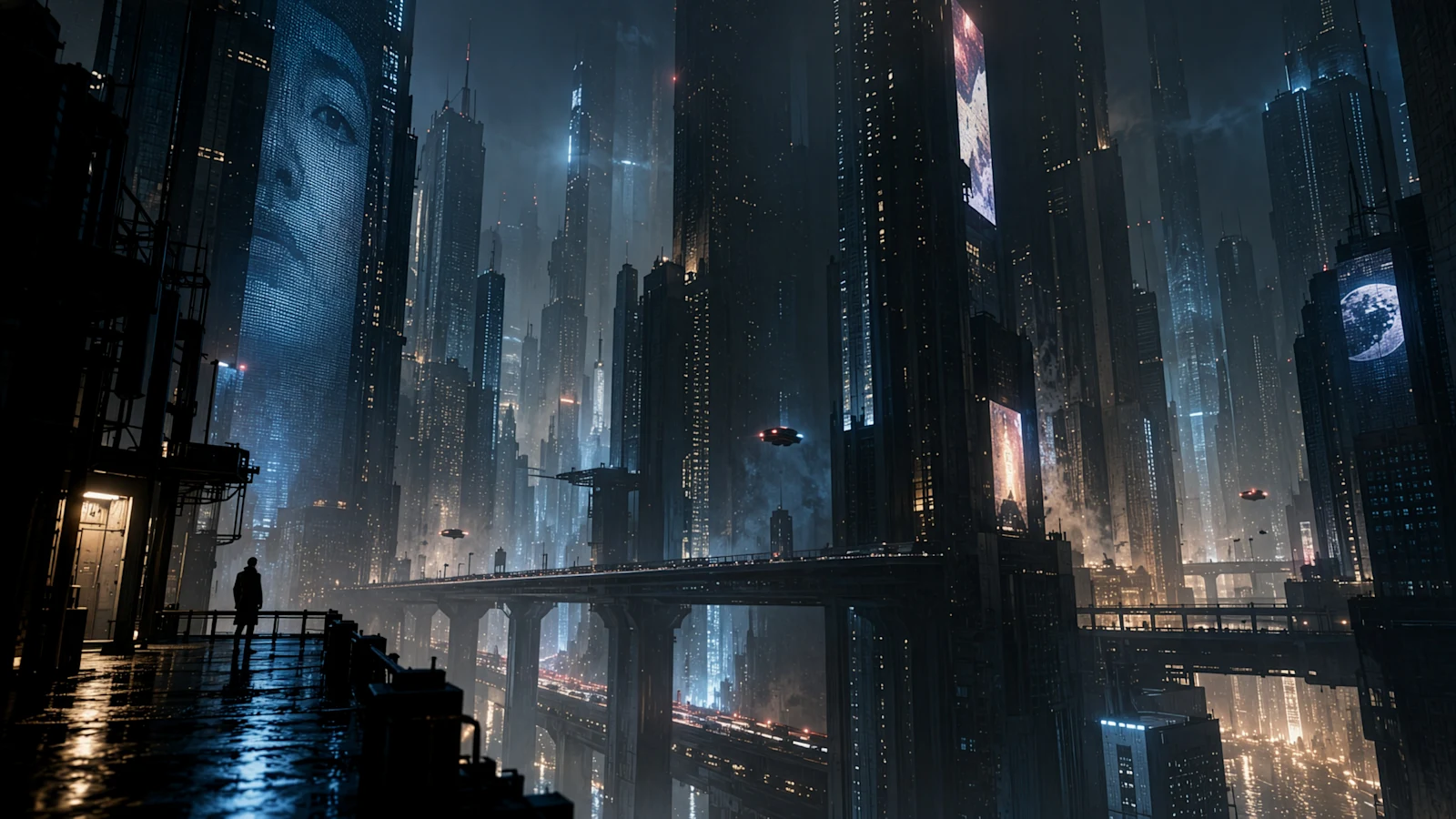
Keep light, colour, camera and the key details of the hero aligned, then tweak just one variable per round.
Accuracy improves when the brief sorts details into three buckets: must keep, can vary and must not change. Follow that sequence when you write.
Finished asset + details to protect + changes requested + layout and camera + exact wording + materials and light + output limits + exclusions
Reference 1 sets the exact shape and label of the skincare jar, reference 2 the brushed travertine surface, reference 3 the light. Make a 4:5 high-end campaign image. Keep the jar's proportions, lid, logo position and the label reading "LUMEN SERUM 30" exactly. Stand the jar upright in the middle with a single sprig of eucalyptus behind it, lit by a thin shaft of sunrise from the right. Editorial still-life photography, true-to-life glass reflections, a soft stone-and-blush palette, plenty of empty space above, no second jar, no repeated leaves, no added text.
Start by listing who it is, the product's exact shape, the label, the camera and the composition that have to stay fixed — then describe the edit.
Number the uploads and say what each does. Do not weight them equally when one decides identity and another lighting.
Ask for a narrow correction to text, material, scale or position, and repeat the details that must stay where they are.
Prepare an exact brief, explore on a cheaper setting when it makes sense, and save top quality for the direction you pick.
Name the deliverable, the details to preserve, the details to change and any choices that are still open.
Assign reference roles and choose the true ratio, pixel size, background, file type and number of images.
Zoom to 100% on likeness, wording, packaging and reflections. Fix the weakest spot without reopening decisions already made.
The upstream GPT Image 2.5 service charges by tokens. MuseGen estimates credits from the size, quality and number of images and shows the running total before you generate.
| Setting | Options | How to decide |
|---|---|---|
| Reference images | As many as 16 | A few clearly assigned references usually beat many, as long as they already pin down the subject and direction. |
| Number of images | 1, 2, 3 or 4 | Use one for a controlled edit and several to compare final directions. |
| Resolution | 1K, 2K or 4K | Step up to 2K or 4K if fine surface detail will be examined or the image will appear large. |
| Dimensions | 15 ratios or custom pixels | Compose for the actual placement rather than a generic frame. |
| Quality | Auto, Low, Medium, High, XHigh, Max | The top tiers use more tokens and credits; switch them on once the direction is agreed. |
| File type and background | PNG, JPEG or WebP | Background options depend on the file type; JPEG and WebP add compression control. |
On MuseGen both models use the provider's GPT Image 2.5 price table. Choose by how much control you need versus how quickly you need to iterate.
| Question | GPT Image 2.5 Sunburst | GPT Image 2.5 Flare |
|---|---|---|
| Main aim | Added precision, firmer edit control and a polished finish for chosen final images. | Faster creation and iteration for routine or large-batch work. |
| Sensitivity to references | The better pick when likeness, product shape and small protected details sit at the heart of the brief. | The better pick when references steer quick exploration and you want several directions to review. |
| Typical results | Premium campaign art, refined product shots and tough edits. | Social ideas, creator content, prototypes, search features and wide sets of variants. |
| Time trade-off | Put up with a longer render when a tighter, more carefully managed result is worth more. | Keep waiting to a minimum when fast feedback and repeated runs drive the work. |
Sunburst lets you set the model a tougher task, but checking the wording, the facts, the rights and brand accuracy remains your job.
It is OpenAI's precision-minded image model, offering extra editing control for polished jobs like flagship campaign visuals and product photography.
Sunburst favours precision and may take longer. Flare favours speed, quick rounds and volume. Both share MuseGen's settings and the provider's pricing.
GPT Image 2.5 is better at preserving subjects. List every feature that must stay, give each reference a job, then put the result next to the source and compare.
Up to 16 on MuseGen. Extra inputs only help when each has a clear role; references that contradict each other make the instructions harder for the model to follow.
Yes — choose one to four. The credit estimate updates with image count, size and quality before you generate.
Pick 1K, 2K or 4K, then choose from 15 aspect ratios or enter exact supported pixels. Settle the final frame before you generate.
Yes. Choose a see-through background with a file type that supports it, then inspect delicate edges — hair, glass, smoke, soft shadows.
There is no flat per-image price. MuseGen estimates credits from the provider's token use — driven by resolution, quality and image count — and shows the number first.
Once the direction is signed off and fine texture or lettering will be examined closely. Lower settings are cheaper while you are still exploring.
No image model can promise flawless text or an identical copy of a reference. Names, numbers, likeness and brand details still need a person to check them.
Claims about Sunburst and GPT Image 2.5 come from the launch post and API docs OpenAI published. Settings and billing describe MuseGen's current APIMart-based integration. Every image here is a published example from the wider family, not a Sunburst-only benchmark.
List the protected details, assign every reference a role and render at the real delivery size. Turn quality up when your chosen direction is ready for its final review.
Start with GPT Image 2.5 Sunburst