Social clips full of effects
Make transformations, stylised action, visual gags, fantasy moments and attention-grabbing vertical shots.


Official model guide plus a working online generator
Create stylized multi-shot video with broad aspect ratios, frame control, reference images, native audio, and flexible duration. The PixVerse v6 AI video generator just below lets you create from a prompt, an image, a pair of frames or supported references.
The full MuseGen video workspace is built in here with PixVerse v6 already selected. You can still try other variants or change models and keep the rest of your setup.
You need an account to generate, and credits depend on the model, variant, length, resolution and other settings you choose. Credits for failed tasks come back automatically.
Know where PixVerse v6 fits before you invest time in references, prompts and renders at full resolution.
PixVerse v6 pushes forward on camera work, character acting and multi-shot generation with sound. A wide range of frame shapes and creation modes makes it a flexible pick for social posts, stylised ads, effects-led ideas and anyone who wants one model for several output formats.
For social creators, agencies, game marketers, music teams, online retailers and effects-led storytellers, the real benefit is not one headline score. It is how PixVerse v6 pairs Text, image, first and last frame, or references to video with Text plus up to seven reference or frame images. That pairing decides whether the model can hold on to a visual direction you have prepared, or has to imagine most of the scene from words.
Here, research and production happen in the same place. Read the official specs, look through the source material, use the prompt structure, then create in the built-in generator. It opens on PixVerse v6, and everything else MuseGen offers — uploads, progress, history, reuse and downloads — is still there.
Plan your inputs, format, length and quality tier from these official capabilities before you spend a credit.
Begin with projects where this model's strongest controls give you a real edge, rather than choosing on top resolution alone.
Make transformations, stylised action, visual gags, fantasy moments and attention-grabbing vertical shots.
Generate character action, dramatic settings, cinematic camera moves and effects for launch concepts.
Put together rhythmic performance clips with bold styling, moving camera, native sound and several shot ideas.
With PixVerse v6 you compose for each channel's actual frame, from 21:9 screens to 9:16 stories and square feeds.
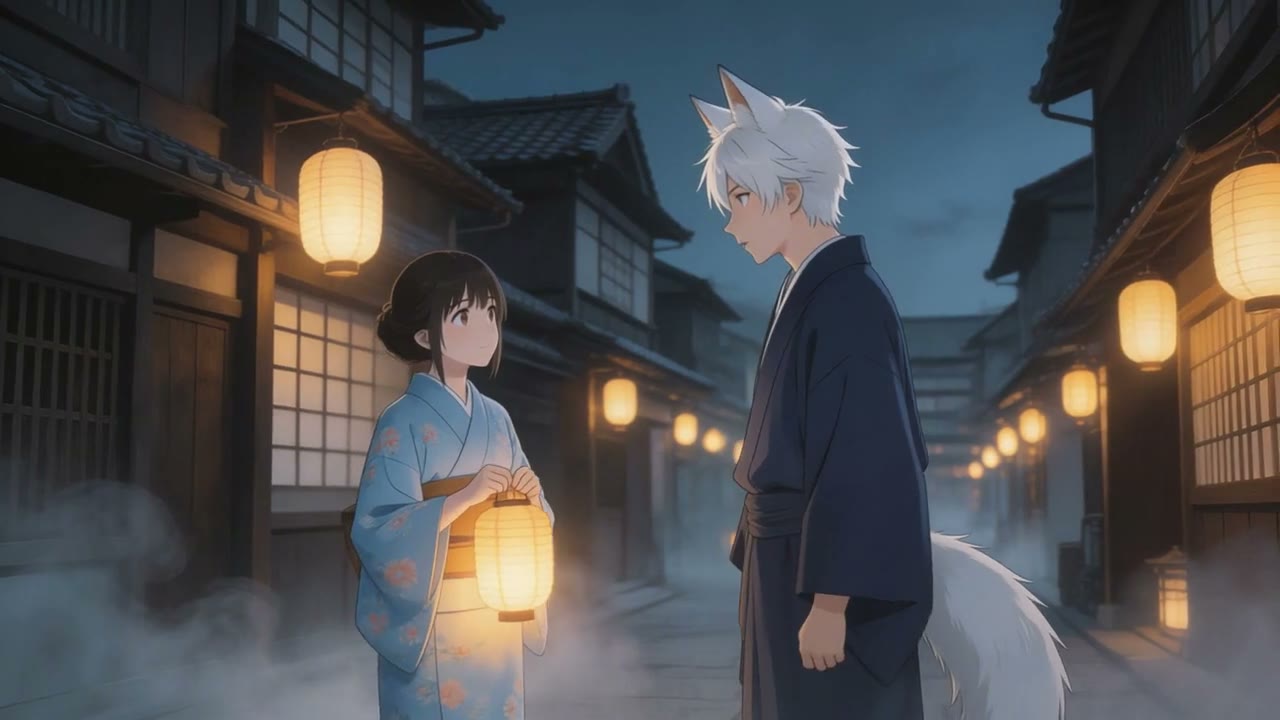
This official footage comes from the developer's own launch or product material and has been optimised to play quickly on this page.
From the official source: Sample from PixVerse's official v6 product review.
Take an idea from first prompt to a configured PixVerse v6 render without leaving the model page.
Write a prompt covering the subject, action, setting, camera, look, pacing and audio. Got references? Upload them and say what each one is there for.
Leave PixVerse v6 selected, pick the variant, mode, length, frame shape, resolution and audio options that suit the shot, then look at the credit cost displayed.
Start the job, watch it progress beside the generator, check the finished clip, then reuse the same settings for a fresh attempt or download the file.
The core capabilities that decide how PixVerse v6 deals with direction, references, movement, audio and final delivery.
Compose for cinema widescreen, standard landscape, square feeds, vertical stories, portrait frames and ultrawide shots.
Bring one image to life, steer both ends of a shot, or let several images define the subjects and visual ingredients.
Build short sequences with more intentional camera changes, scene flow, character action and acting.
Speech, ambience, music and effects come out as part of the clip and follow its visual rhythm.
Rule out unwanted visual behaviour and keep a seed fixed while you test controlled prompt or setting tweaks.
Go from quick low-res tests to polished 1080p, with each clip's length matched to its creative beat.
A good PixVerse v6 prompt reads like a short production brief: a subject, actions in order, a camera plan, an art direction and a soundtrack.
Subject + actions in order + setting + camera + lighting + look + timing + dialogue and sound + what must stay consistent
“A 9:16 fantasy streetwear clip. Open on the uploaded portrait, burst through a cloud of gold confetti, then show the same character striding across a rain-soaked night bazaar as the camera orbits once. Finish on the uploaded full-length frame. Crisp fabric motion, rhythmic steps, distant stall chatter and a bright chime on the reveal.”
Arrange the subject and camera idea for the final aspect ratio rather than counting on a crop later.
Upload planned opening and closing images when a transformation or a final reveal is the heart of the idea.
Say when the camera changes in each shot, when the subject acts and when a sound or effect should land the payoff.
Choose the tier and format that match your stage of the project. Draft settings help you find the shot; premium settings finish a direction that is already working.
| Feature | What PixVerse v6 offers |
|---|---|
| Tiers | PixVerse v6 |
| Modes | Text, image, first and last frame, or references to video |
| Accepted inputs | Text plus up to seven reference or frame images |
| Reference support | Opening frame, closing frame, or as many as seven images |
| Length | 1–15 seconds |
| Output resolution | 360p, 540p, 720p or 1080p |
| Frame shapes | 16:9, 9:16, 1:1, 4:3, 3:4, 2:3, 3:2 and 21:9 |
| Sound | Native audio generation |
AI video behaves best when each prompt carries one clear visual idea. Check the important details before you publish, and treat a first render as a directed take you can improve.
Busy interactions between several characters, fast objects crossing the frame, legible lettering, brand marks, fingers and exact counts of things can still change from take to take. Lean on clear references, keep crowded action simple and check continuity frame by frame.
More pixels are no substitute for art direction. Nail the story beat, framing, motion and sound on an inexpensive setting first, then move the best version up to a premium tier or a higher resolution.
PixVerse v6 is an AI video generation model from PixVerse. PixVerse v6 pushes forward on camera work, character acting and multi-shot generation with sound. A wide range of frame shapes and creation modes makes it a flexible pick for social posts, stylised ads, effects-led ideas and anyone who wants one model for several output formats. On MuseGen the full generator sits right here, letting you go from reading about the model to creating with it without switching workspaces.
PixVerse v6 offers Text, image, first and last frame, or references to video. That means you can begin from a written idea, fix the first frame with a picture, or bring in extra references when the layout, the identity or the motion needs tighter control.
Clips run 1–15 seconds, with output at 360p, 540p, 720p or 1080p. Use a lower resolution while you explore ideas, then switch to the highest sensible resolution once you are ready to judge fine detail or hand the shot over.
PixVerse v6 handles Native audio generation. Write speech, room tone, score and sound effects into the prompt on purpose so the soundtrack backs up the on-screen action and the emotional pace of the scene.
It takes Text plus up to seven reference or frame images. For references it supports Opening frame, closing frame, or as many as seven images. Tell the prompt what each uploaded file is for rather than hoping the model guesses which image governs identity, style, composition or motion.
PixVerse v6 suits social creators, agencies, game marketers, music teams, online retailers and effects-led storytellers especially well. The right pick still comes down to the individual shot: use the official specs, features, examples and prompt tips on this page to judge whether its mix of control, pace, resolution, audio and references fits the job.
A dependable prompt covers the subject, the action, the place, the camera, the light, the look, the timing and the sound. List events in the order they happen, put exact dialogue in quotes, and say what has to stay consistent. If you upload references, name each one.
Yes. The complete PixVerse v6 generator is built into this page just below the hero. Pick text, an image, two frames or references as needed, set the available options, check the credit cost shown, and start generating without ever leaving this page.
Capabilities and media on this page were checked against the developer's official product pages, announcements and documentation.
Head back to the full PixVerse v6 AI video generator at the top, add a prompt or your references, and turn the next idea you have into a finished clip.
Generate nowSee every model