Image generation model by OpenAI

GPT Image 2 AI Image Generator

GPT Image 2 takes a detailed creative brief and returns images ready for real use. Start from a prompt, steer it with as many as five uploaded images, pick one of three quality levels, and export transparent or high-resolution files that slot straight into design work.

  • Prompt or reference workflows
  • Output at 1K, 2K or 4K
  • Failed renders refunded
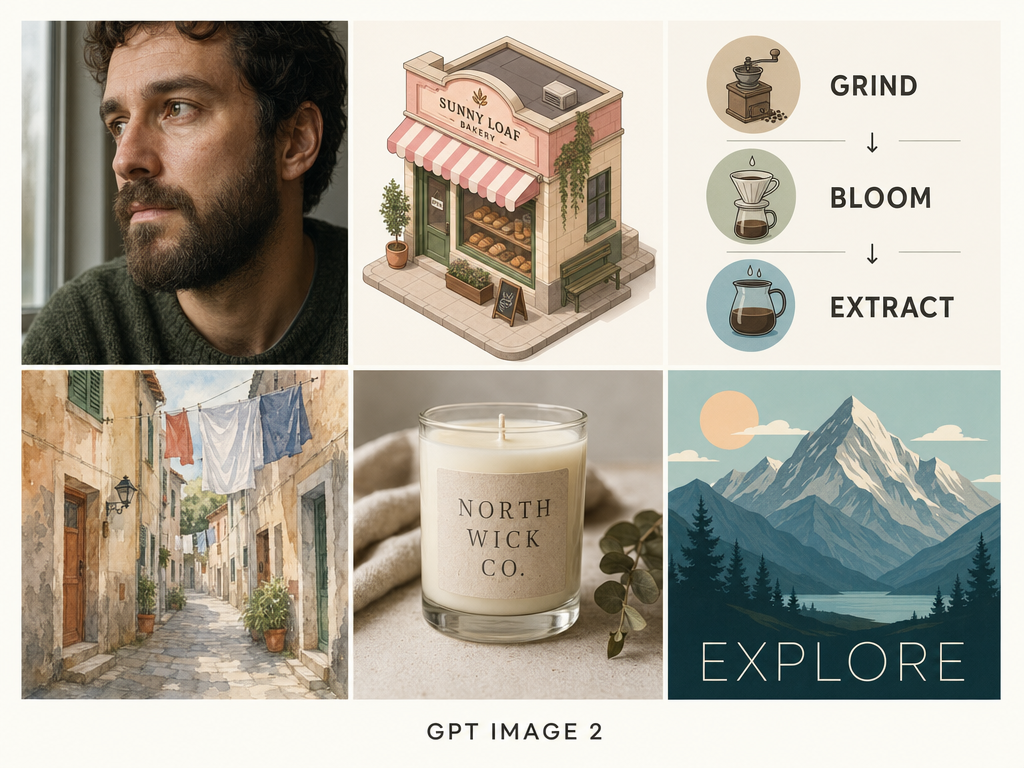
GPT Image 2 grid of six images: a portrait, a bakery, a coffee diagram, a watercolour street, a candle and a travel poster

Generate with GPT Image 2

Explain the deliverable, the subject, the layout, any text it needs and the finish you want. Attach references when a recognisable detail has to carry over, then pick output settings to suit where the image will be used.

Loading the generator…

GPT Image 2 is preselected. The model switcher is still there if you want to run the same brief on another image model.

Made for images that are ready to use

GPT Image 2 comes into its own when a brief stacks several requirements that all have to land together: layout, legible text, style, where things sit and a practical file format.

According to OpenAI, GPT Image 2 is the most advanced model it offers for creating and editing images quickly and at high quality. The release stressed tighter instruction following, more reliable layouts, improved text across languages and better retention of requested details. In practice that suits work sitting somewhere between illustration and graphic design, more than loose, anything-goes art prompts.

Learn More

MuseGen runs GPT Image 2 for both prompt-only images and reference-led ones, all in one place. Settings cover seven familiar frame shapes, 1K to 4K resolution, Standard to High quality, and a transparent background whenever you need one. Upload as many as five pictures to fix the person, the product, the arrangement or the style the result should follow.

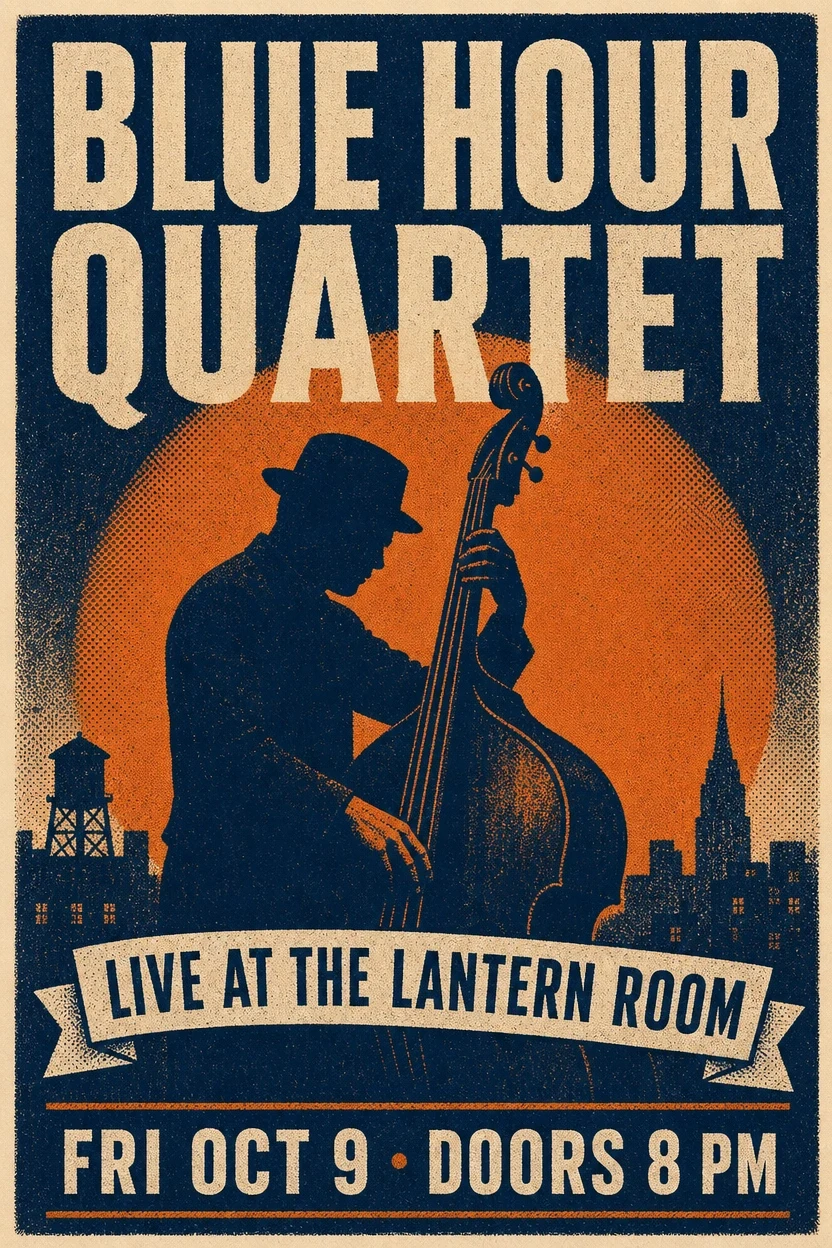
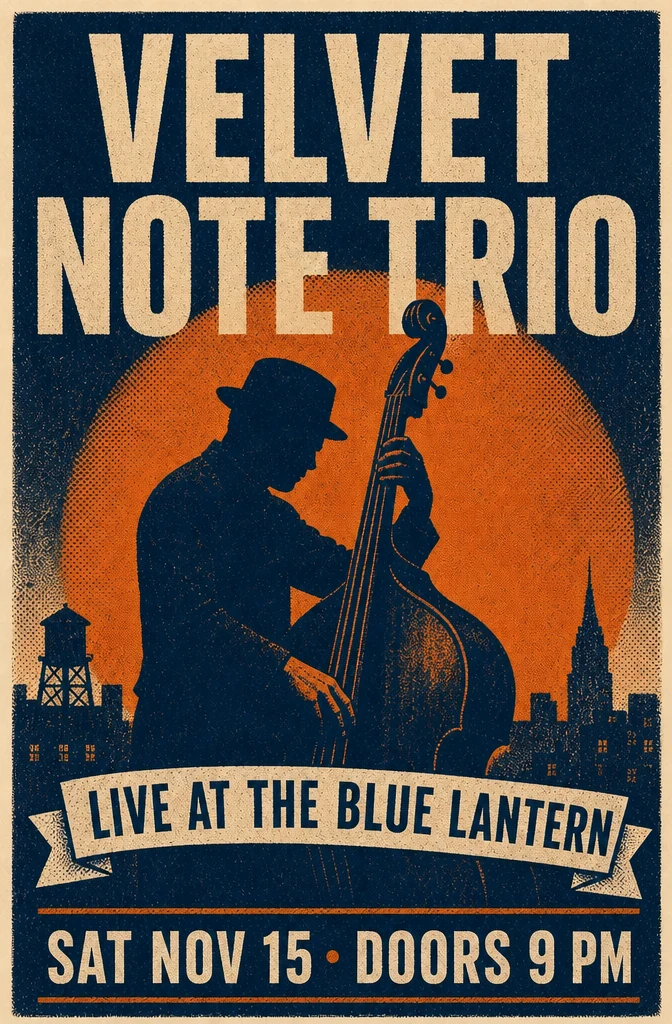
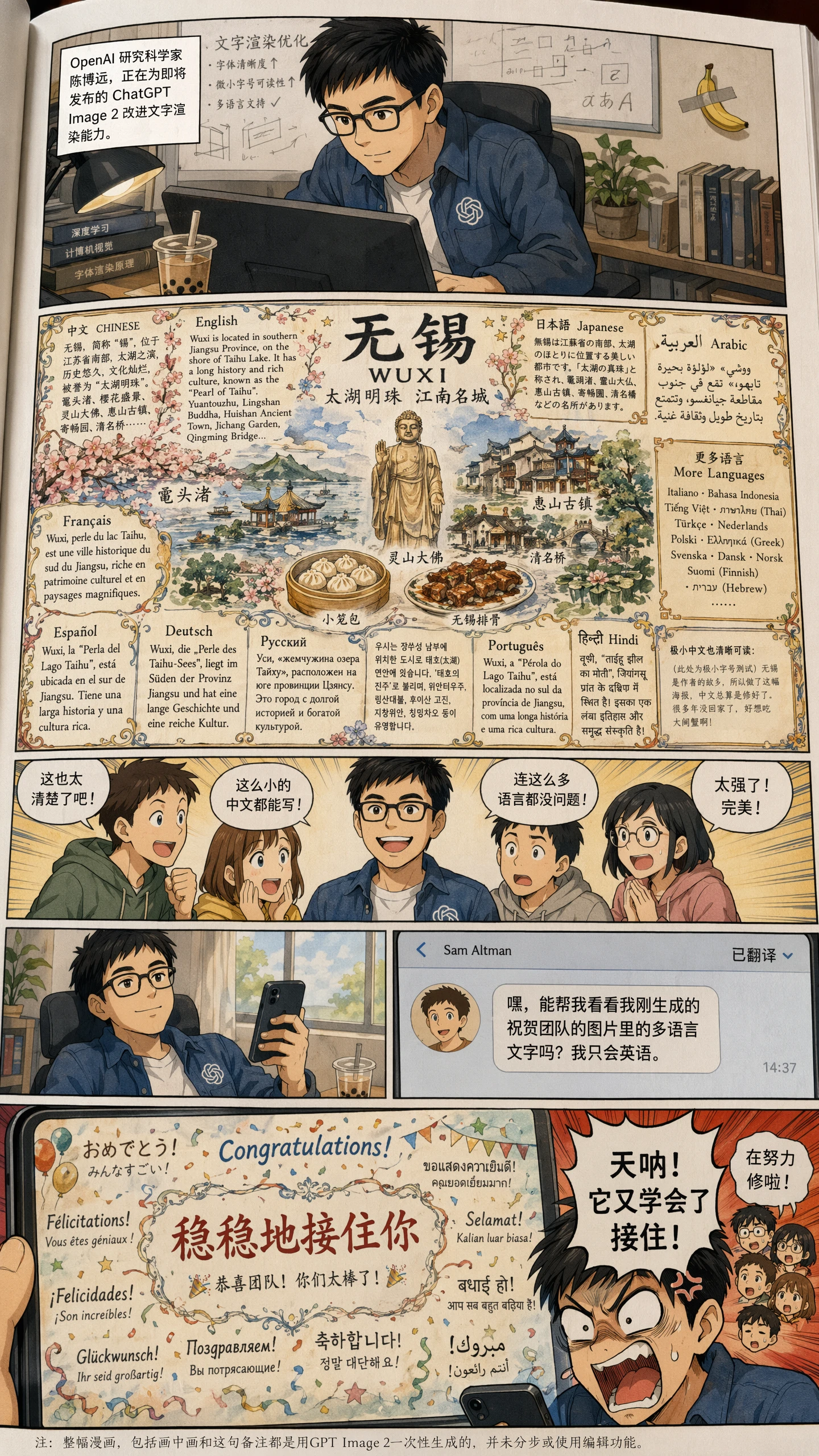
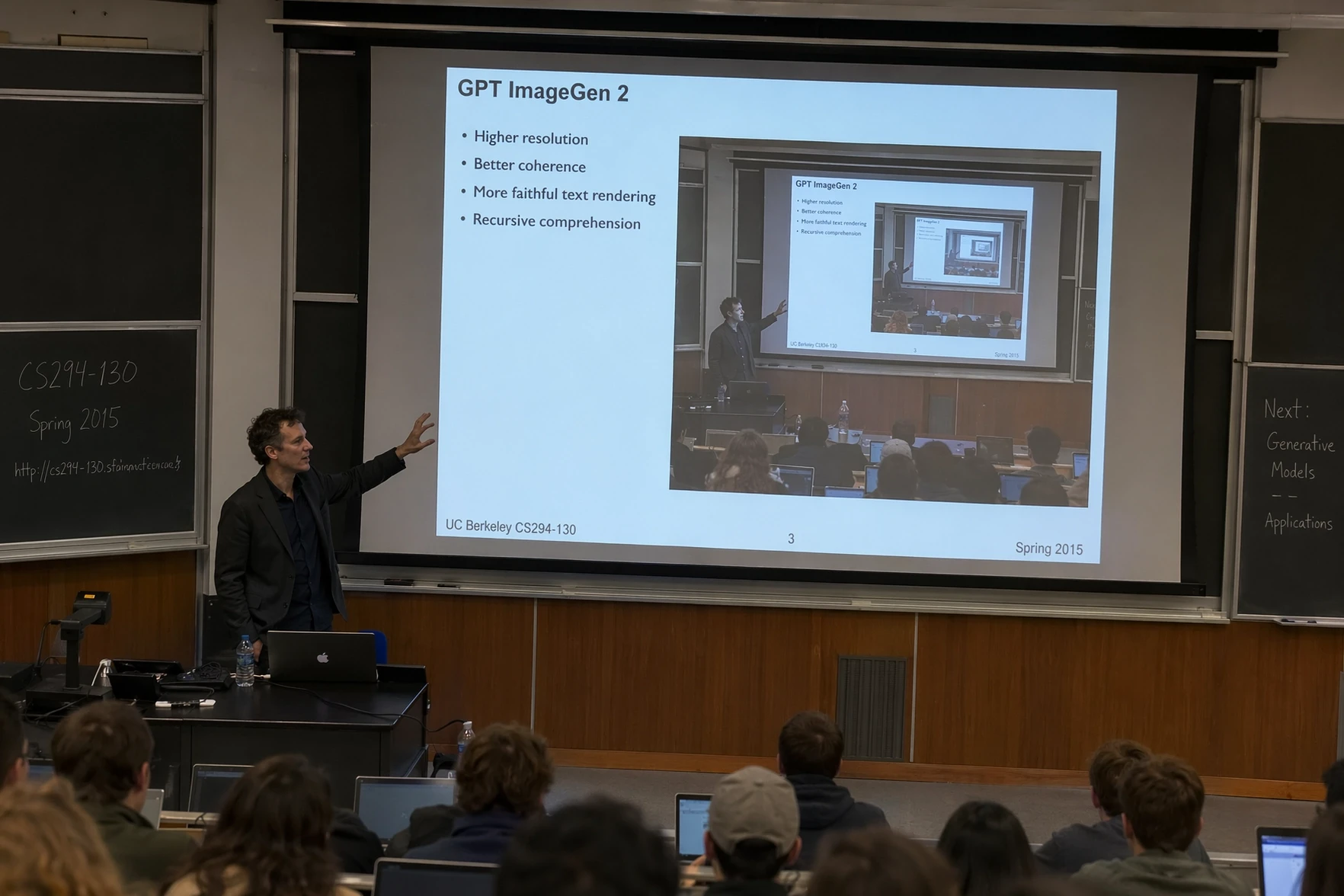
Each example below shows a different job, not the same look again and again. The multilingual comic packs dense text into a picture. The big collage throws many object types and design styles together. The lecture hall combines a legible slide with an image nested inside itself. The jazz poster edit swaps the words while the design stays exactly as it was.

How GPT Image 2 is set up on MuseGen

These are the settings this generator offers, including the resolution and quality options MuseGen currently provides through its image provider.

Input
A prompt plus 5 images max

A prompt can carry it alone; add references when a subject, a product, an arrangement, colours or an edit must be matched.

Resolution
1K, 2K or 4K

Try ideas at 1K, then go higher when the finished asset calls for more detail.

Quality
Standard, Medium or High

Both quality and resolution change the credit total you see before generating.

Background
Automatic or transparent

Choose a transparent result for cut-out products, icons and layers ready for compositing.

Four strengths that make GPT Image 2 good for finished assets

Every ability below sits next to a published GPT Image 2 example that clearly backs it up.

GPT Image 2 comic and travel graphic with Chinese and other languages

Legible text in many languages

Make comics, explainers and localised campaign ideas where the writing is part of the design. This published sample mixes Chinese speech bubbles, a destination panel in several languages and multiple tiers of type, without turning into a plain text card.

Start with GPT Image 2
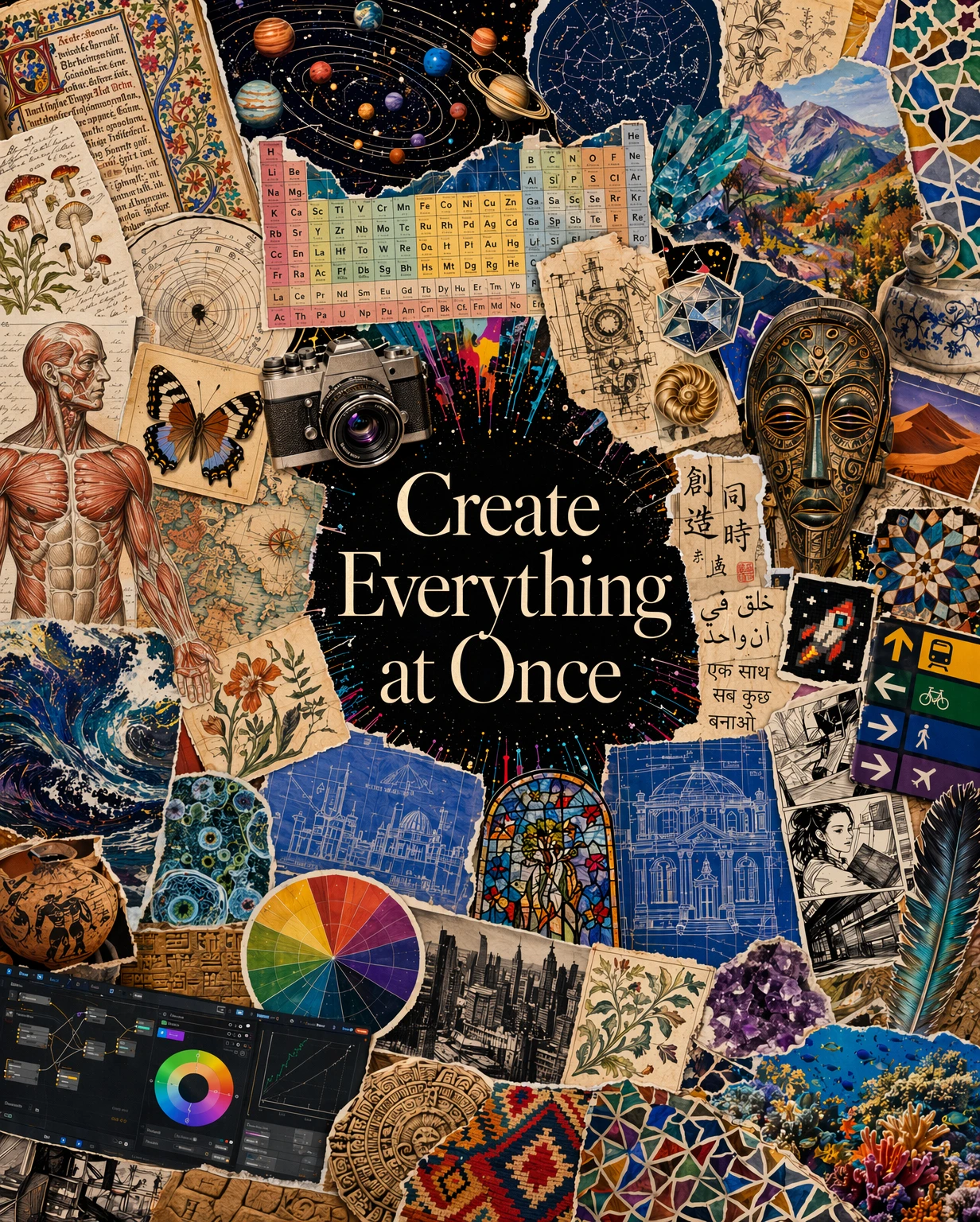
GPT Image 2 collage of science, art, architecture and lettering in several languages

Rich layouts from a single brief

Arrange many categories, textures and references into a deliberate composition. The collage holds scientific diagrams, artefacts, photos, illustration and lettering together around one clear focal point.

Start with GPT Image 2
GPT Image 2 lecture hall with a readable slide that repeats the scene

Control over layout and fine detail

Decide where information goes and how elements relate. The lecture-hall scene includes a convincing slide, readable bullet points and a smaller copy of the image on the projector screen.

Start with GPT Image 2
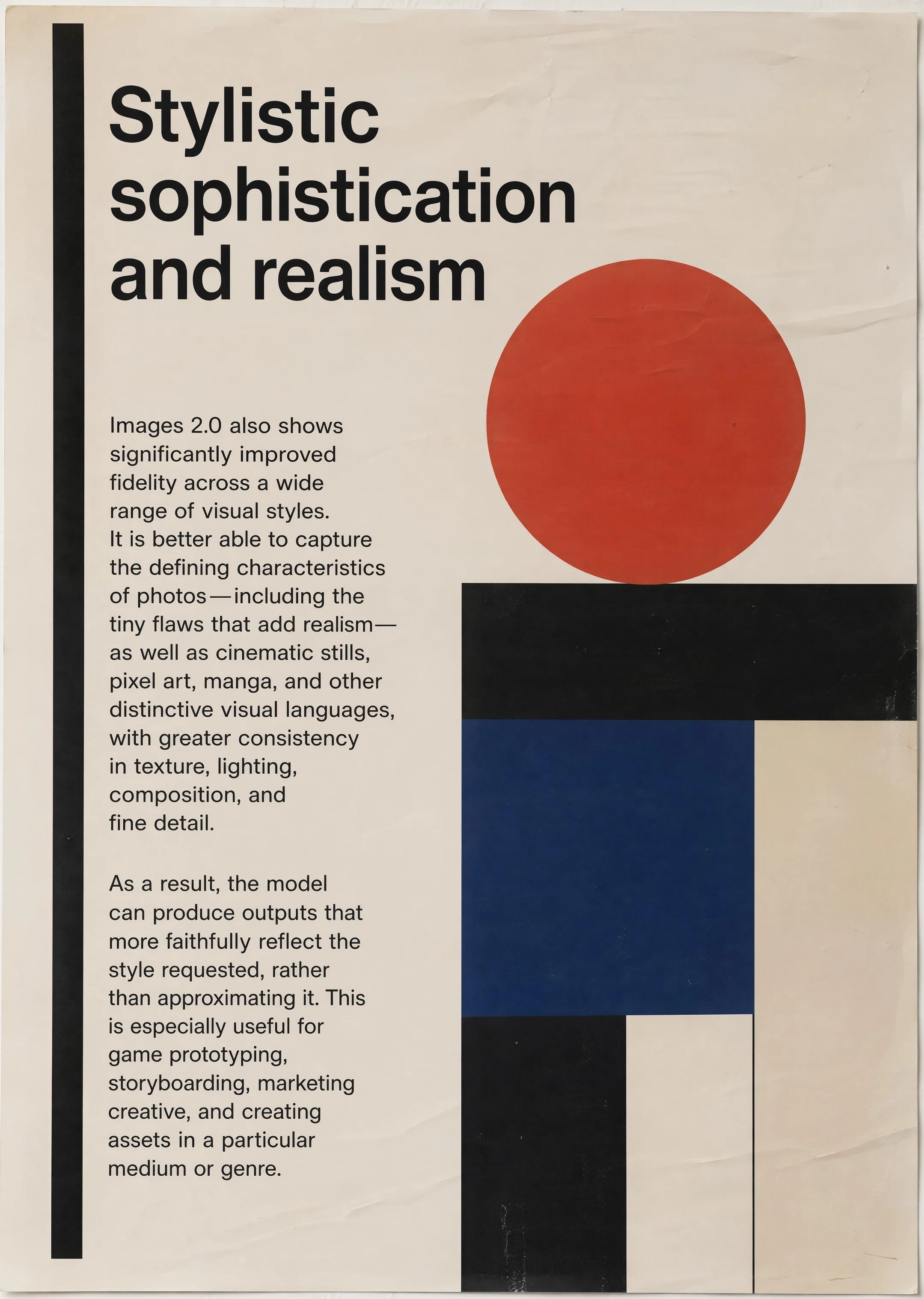
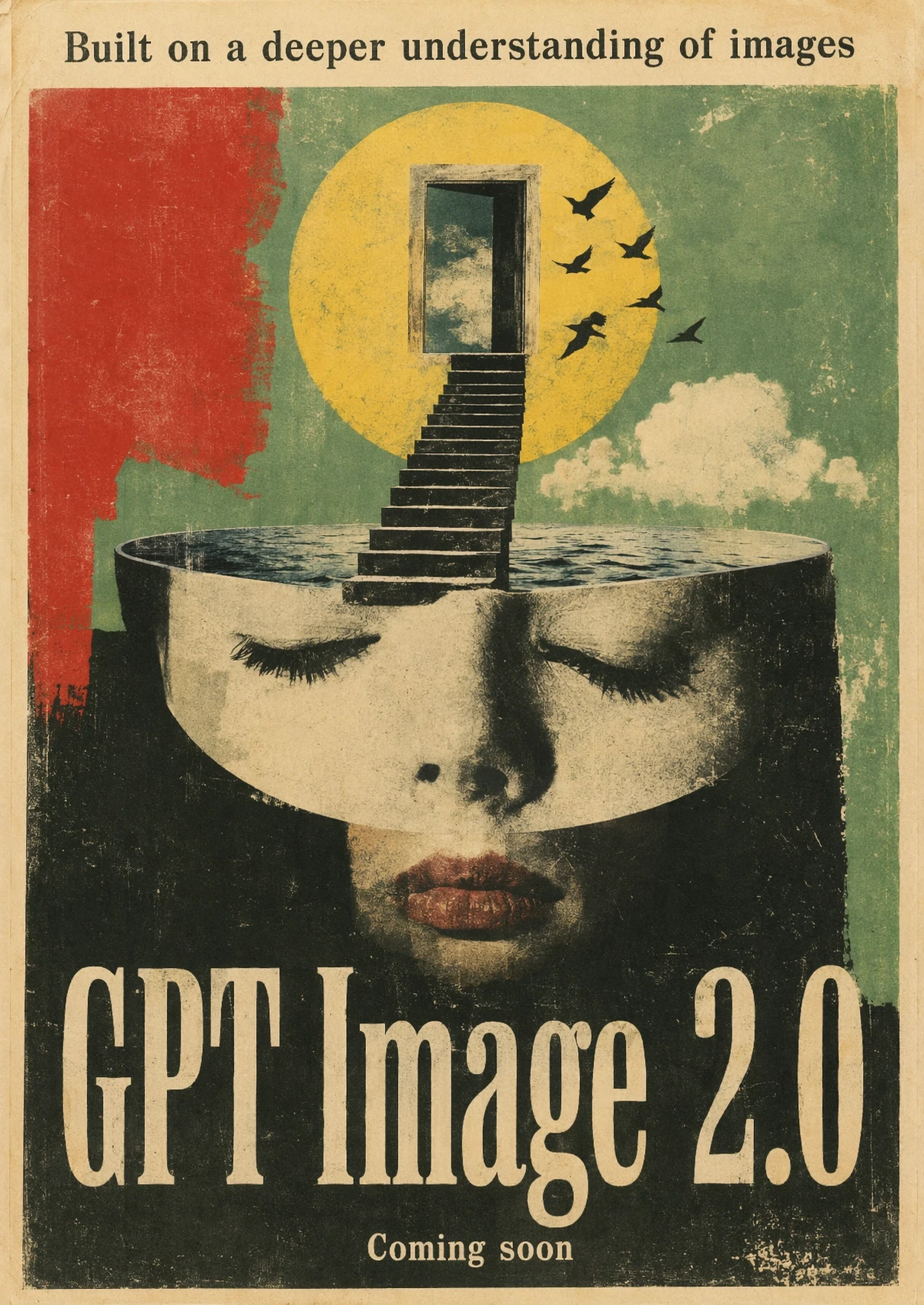
GPT Image 2 editorial piece with a printed-paper texture and consistent graphic style

Styles that stay consistent

Name the medium, the era, the texture and the finishing touches rather than leaning on one vague style word. OpenAI's launch art shows a unified printed-paper look with restrained shapes, believable wear and tidy type.

Start with GPT Image 2

Rewrite the message and keep the design intact

Editing from a reference is ideal when the layout and artwork already work. State the precise change first, then list everything that must not move.

Jazz poster in blue and orange, shown before GPT Image 2 edits its text
Poster before
The same jazz poster with a fresh title, venue and date but untouched artwork and style
Poster after text edit

Replace the title with "VELVET NOTE TRIO", change the venue to "THE BLUE LANTERN", and update the date to "SAT NOV 15 · DOORS 9 PM". Preserve the bassist illustration, orange circle, navy-and-cream palette, distressed print texture and overall layout.

Where GPT Image 2 earns a spot in your creative process

It fits briefs where appearance counts, and so do wording, structure, constraints and a file you can put to work.

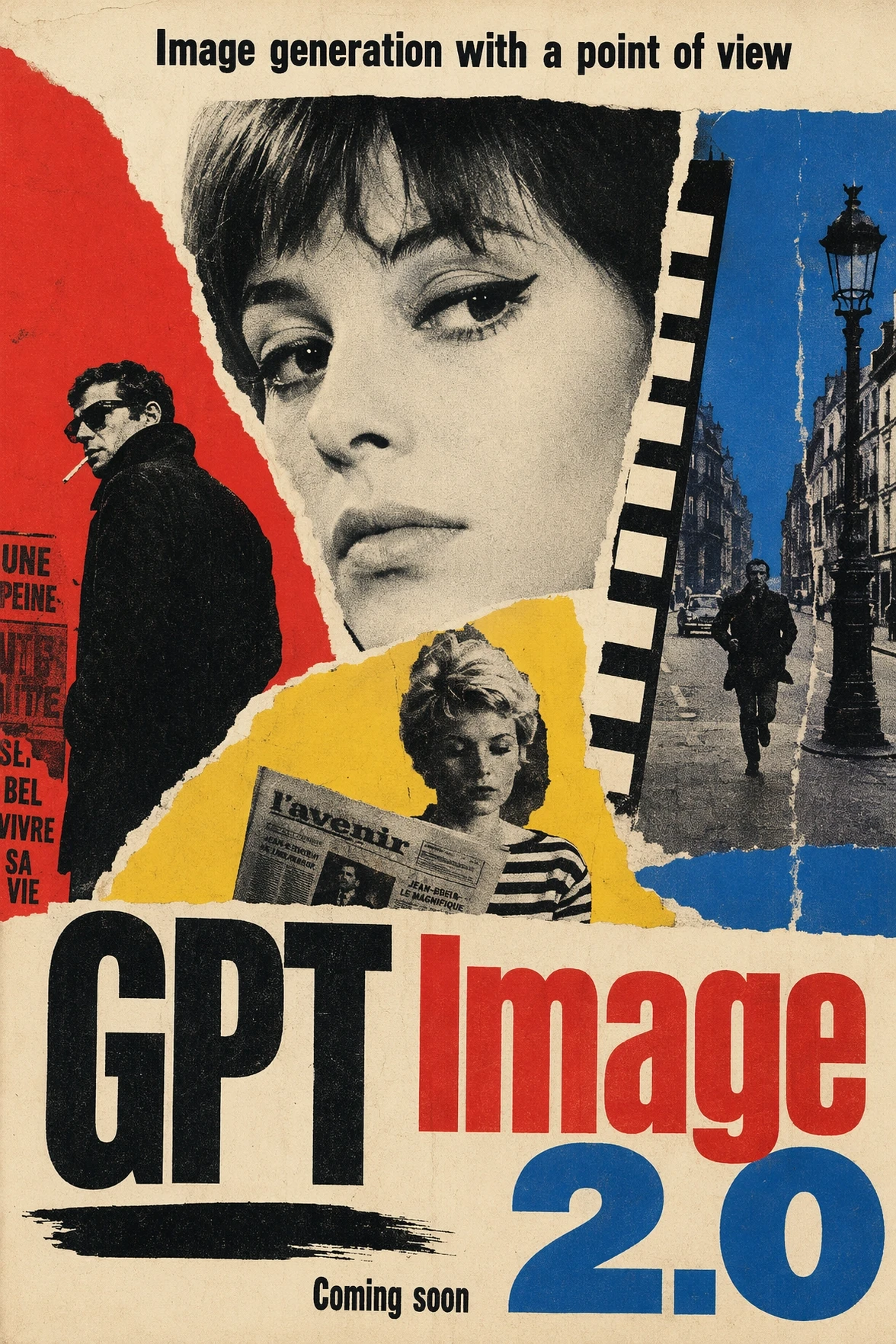
GPT Image 2 vintage film poster with strong type hierarchy

Posters and campaign ideas

Build key art with a particular period feel, headline style, order of emphasis and colour scheme. Give it the exact copy and the final ratio, then check every word before it goes out.

Surreal GPT Image 2 editorial poster on the theme of seeing and understanding

Editorial ideas and story worlds

Express an abstract theme as a memorable image for a magazine cover, an article, a pitch deck or early story work. Be as specific about the medium as you are about the concept.

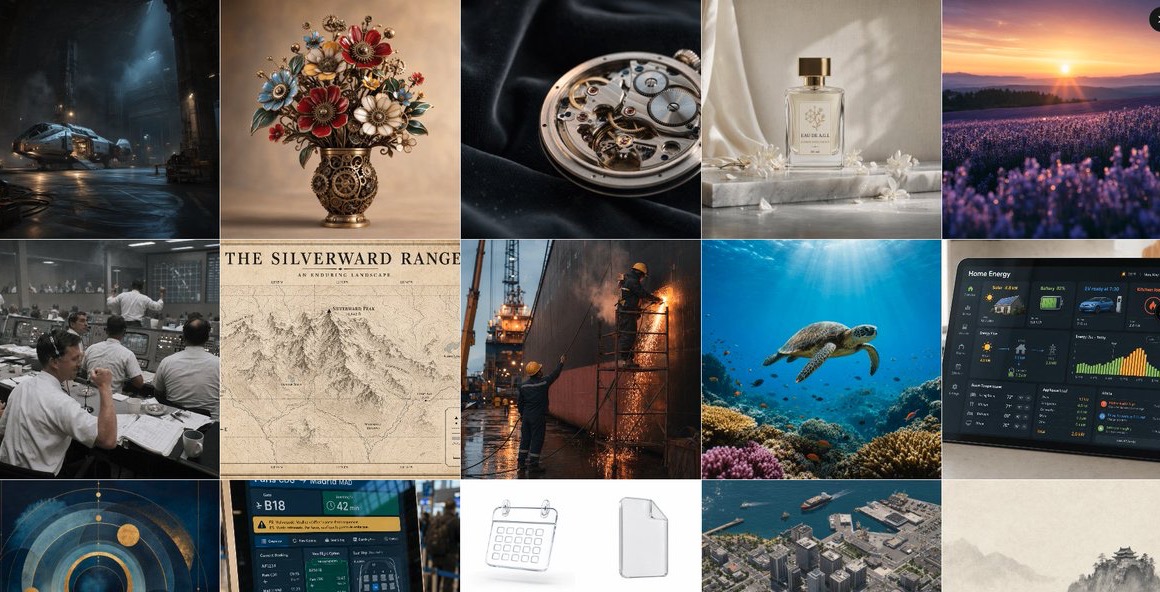
Grid from OpenAI Developers showing GPT Image 2 products, UI, maps and technical images

Product, UI and technical images

Prototype boxes and bottles, app screens, diagrams and product photography with a single model. Keep labels brief, name the viewing angle and explain where the image will be used.

Give GPT Image 2 a structured brief

A strong prompt keeps the scene, the subject, the key details, the type of asset and the constraints separate. That ordering cuts confusion when several requirements compete.

Prompt template

Scene and context + main subject + layout and camera + exact wording + materials, light and style + what it is for + hard rules and details to keep.

Sample prompt for a launch graphic

A 4:5 poster announcing a refillable hand soap named "RIVER STONE". One amber glass pump bottle stands centred on wet grey slate, with a faint moss-green shadow and a single fern frond. The headline "CLEAN HANDS, LIGHTER FOOTPRINT" sits above the bottle and "Refill at home." sits beneath it, both exactly as written. High-end product photography in an editorial style, soft overcast light, generous empty space, label turned to camera, and nothing else written or branded.

01

Describe, don't compliment

Swap words like stunning or professional for things you can see: camera angle, layout, light direction, material, colour relationships and the exact final format.

02

Quote every word that must appear

Wrap headlines, labels and button text in quotation marks. Keep the first version lean; if spelling or emphasis is off, correct it with a narrow edit rather than starting over.

03

Say what has to stay put

Before describing anything new in an edit, list what is locked: the face, the pose, the product's outline, where the logo sits, the camera angle, the composition.

Use GPT Image 2 in three steps

Start from the actual deliverable and its rules, and only raise quality once the idea is heading the right way.

01

Describe the finished asset

Explain the thing you are producing, the audience, the place it will appear and the visual or written parts that are must-haves.

02

Set references and output

Attach as many as five images if a person or design needs to stay consistent. Set frame shape, resolution, quality and background (solid or transparent), then generate.

03

Check and refine

Zoom to full size and check spelling, hands and bodies, small items, alignment and brand elements. Fix the weakest spot with a short follow-up instruction.

GPT Image 2 settings and credit ranges

Price depends on resolution and on quality. You see the exact figure before submitting, whether you want an inexpensive draft or a highly detailed final.

SettingOptionsWhen to pick it
Resolution1K, 2K, 4K1K to test layouts; 2K or 4K once you need finished detail or a larger placement.
QualityStandard, Medium, HighHigher tiers cost more credits. Save High for briefs where lettering or fine texture really need it.
Aspect ratio1:1, 2:3, 3:2, 3:4, 4:3, 9:16, 16:9Pick the real final ratio first so the composition is designed for that frame.
Transparent backgroundAutomatic or transparentGo transparent for cut-out objects and later compositing; ask for a clean outline with complete edges.
Credits2–80 creditsThe price varies with resolution and quality; the generator shows the current total, and failed jobs are refunded.

Pick GPT Image 2 when your brief has firm requirements

Choose the model built to solve whatever is holding your project back. Run your important prompts on a couple of options before producing a whole set.

SituationGPT Image 2Look at another model
Images heavy on textA solid pick for posters, interface ideas, comics and diagrams with designed lettering.Seedream 5.0 Pro handles very dense infographics well, and Nano Banana Pro suits Google-style explainers built on knowledge.
Transparent filesMuseGen's integration includes a dedicated transparent-background setting.Go elsewhere when you do not need transparency and quick, cheap exploration matters most.
Managing qualityThree quality tiers let you keep cheap drafts separate from premium finals.Nano Banana 2 prices simply by resolution if you want fewer choices and fast iteration.
Working from referencesHere, as many as five uploaded images can guide subjects, products, layouts and controlled edits.Try Nano Banana Pro when many people or visual elements must be combined in a complex scene.

What to check before you publish

A great first result is still a flat generated picture, not a layered design file. Review anything with legal, factual or brand consequences.

  • Check every piece of generated text, every number and date, and any copy in other languages — something that looks plausible can still be wrong.
  • Look closely at hands, faces, duplicated objects, reflections, logos and tiny UI elements at full size.
  • Transparent images may need their edges tidied where there is hair, glass, smoke or a soft shadow.
  • Layouts come out as one flattened picture; when typography must be exact or layers editable, rebuild the final copy in your design software.
  • Upload only references you are entitled to use, and clear the rights before any commercial release.

GPT Image 2 FAQ

What exactly is GPT Image 2?

It is OpenAI's most advanced model for generating and editing pictures, designed around close instruction following, workable layouts, readable text, control over style and high-quality image inputs.

Does GPT Image 2 edit existing images?

Yes. Add one reference or several, then describe both what should change and what must stay. In this workflow MuseGen currently takes up to five reference images.

What resolutions can I choose?

1K, 2K and 4K are available on MuseGen today. Use the lowest while exploring and go up when the final placement benefits from more native detail.

What is the difference between Standard, Medium and High?

They balance credit cost against how much effort the model spends on the image. The total depends on both quality and resolution, and you see it before generating.

Can GPT Image 2 output transparent images?

Yes. Switch on the transparent background and describe a single isolated subject with crisp, unbroken edges. Fine materials such as hair or glass may still need a manual look.

Will the text in my image always be correct?

No model gets copy right every time. GPT Image 2 is stronger at text than most, yet names, dates, prices, translations and any legally sensitive wording should always be proofread.

What is the reference image limit?

Five references at most in this generator. Tell the prompt what each image is for, so the model can tell which one sets identity, product shape, layout or style.

How many credits does GPT Image 2 cost?

Right now each image costs between 2 and 80 credits, set by the resolution and quality you choose. You see the exact amount before submitting, and failed renders are refunded.

Should I pick GPT Image 2 or Nano Banana Pro?

Pick GPT Image 2 when transparency, clear quality tiers, text-led designs or strict multi-step instructions are the priority. Pick Nano Banana Pro when the job is high-fidelity scenes built from many references, or visuals grounded in knowledge.

Sources and where the examples come from

Technical details come from the product and API pages OpenAI currently publishes. Each published example credits the page it came from; the before-and-after edit is a documented GPT Image 2 case from RenderFlow.

Make your next brief a usable image

Settle the layout on Standard quality, then sharpen the prompt and increase the settings once the direction is right.

Start with GPT Image 2